
Migrating from SalonLife
If you're switching from SalonLife, you can redirect clients to your new Taimli booking page and optionally import your existing bookings and client data. This guide shows how to migrate smoothly.
Configure SalonLife to redirect clients
Since existing clients may still try to book through SalonLife, configure it to redirect them to your new Taimli page.
Create a redirect service
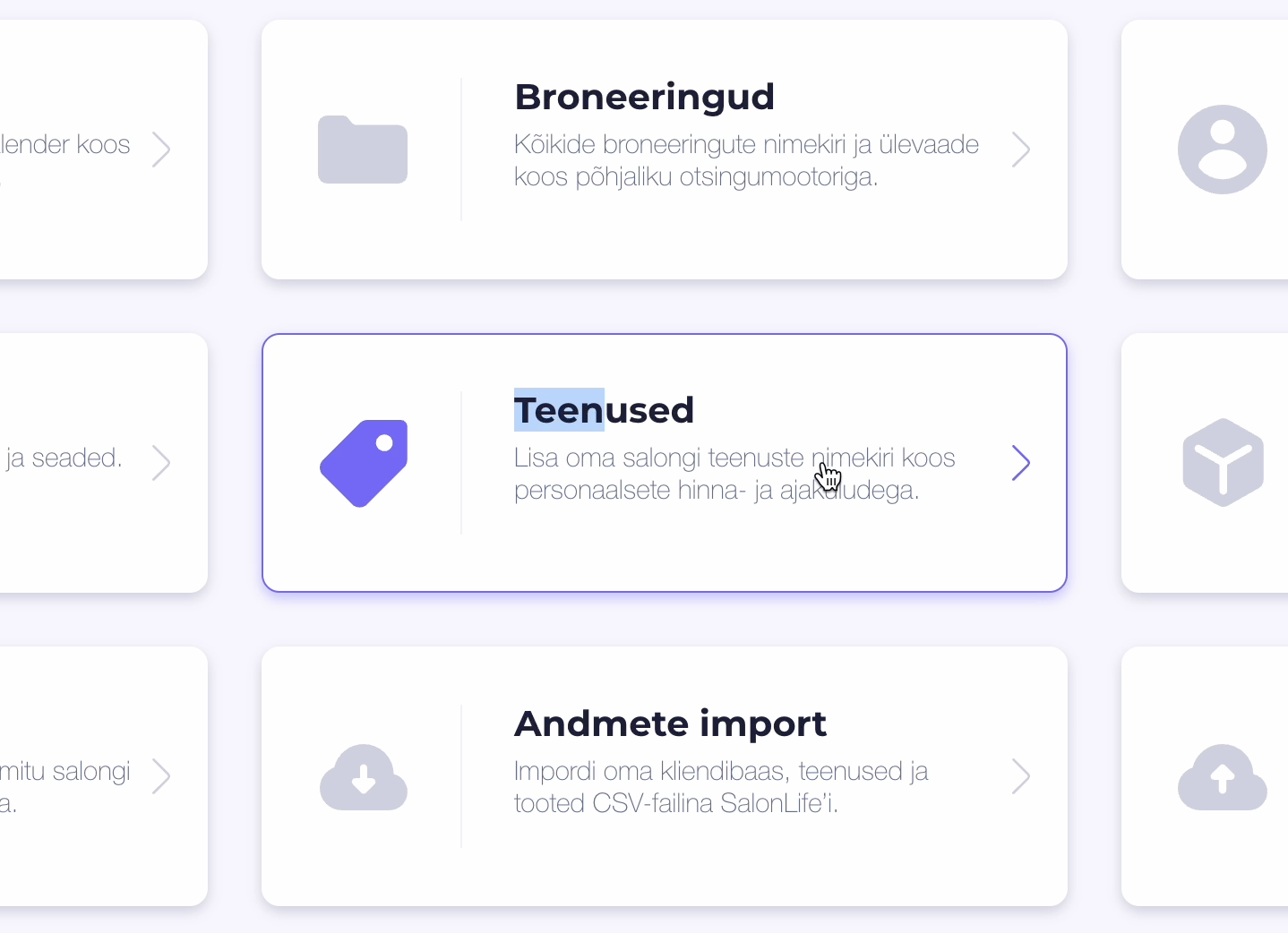
In SalonLife, go to your dashboard and click the Services card.
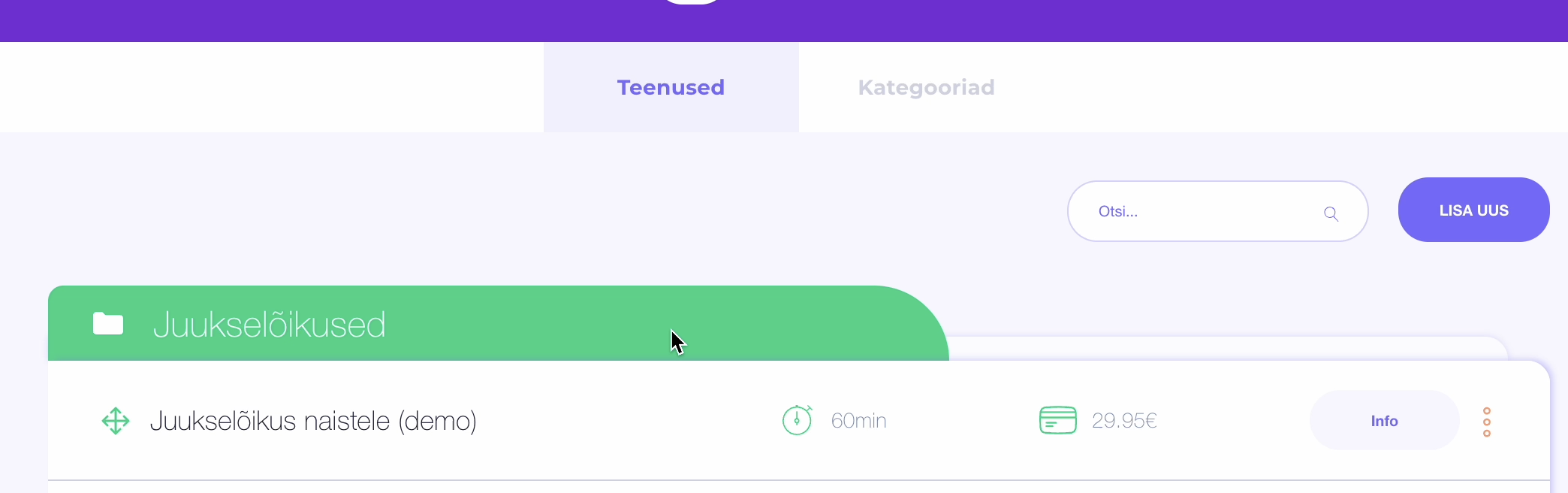
Click "Add New" to create a new service.
Fill in the service details:
Name: "New booking page: SALONGI-LINK-TAIMLIS"
Description: "New booking page: SALONGI-LINK-TAIMLIS"
Base price: 0€
Duration: 1 hour (or any duration)
Category: Choose any category (e.g., Haircuts)
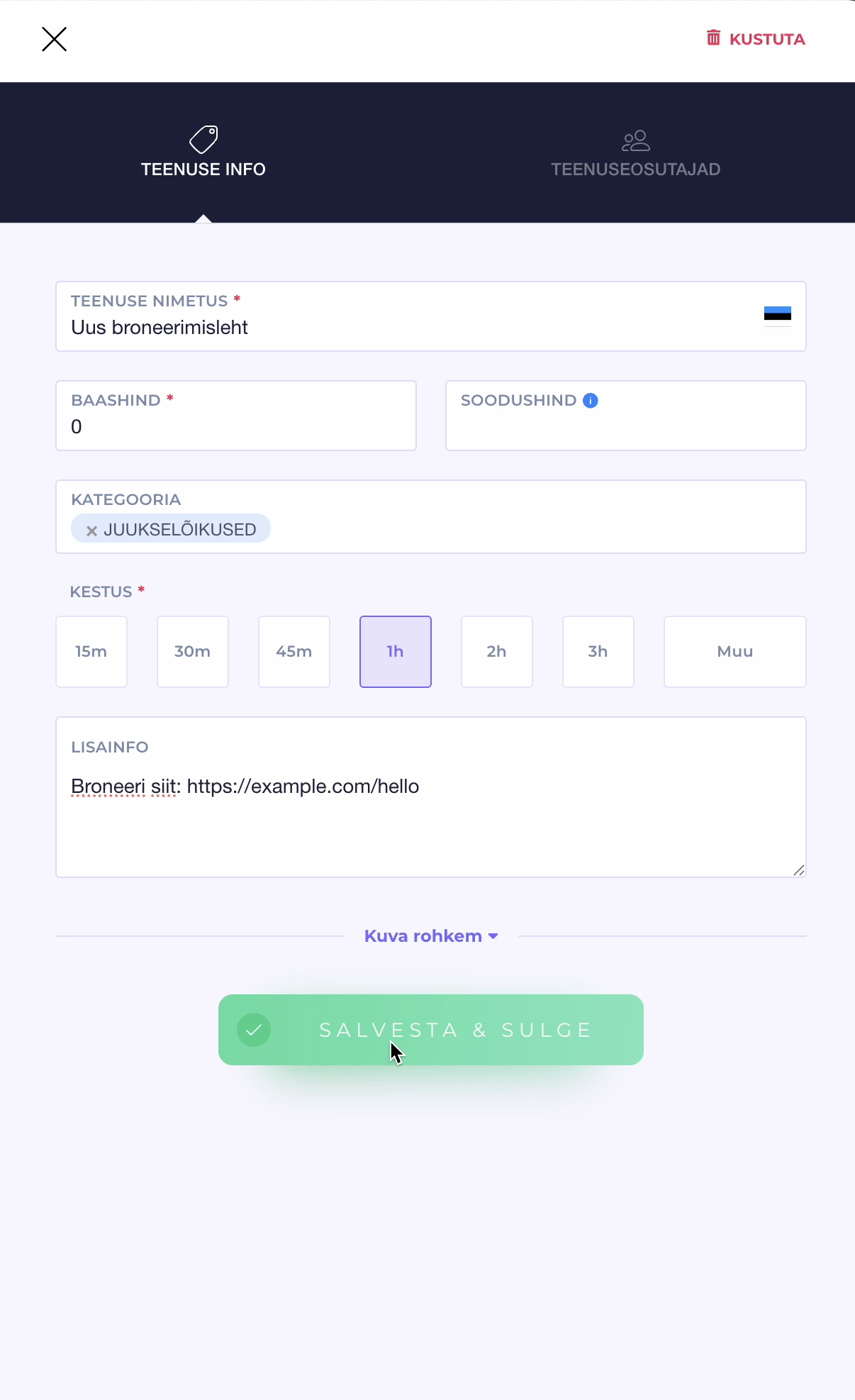
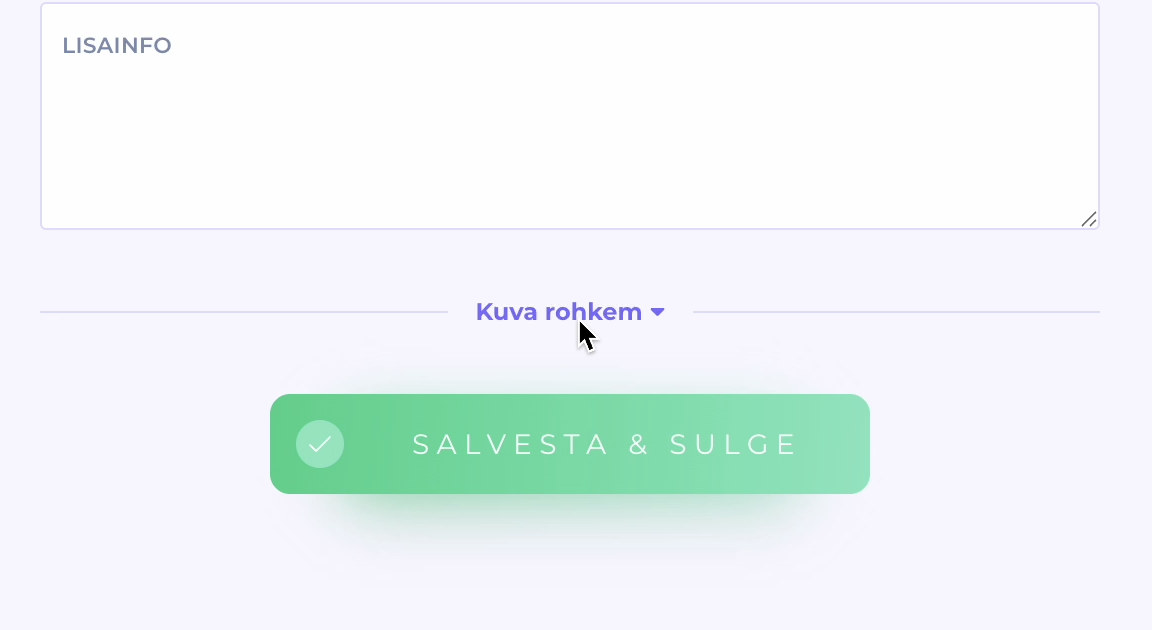
Expand the "Additional Info" section and add: "Book here: SALONGI-LINK-TAIMLIS".
Click "Save & Close" to create the redirect service.
Disable online booking for other services
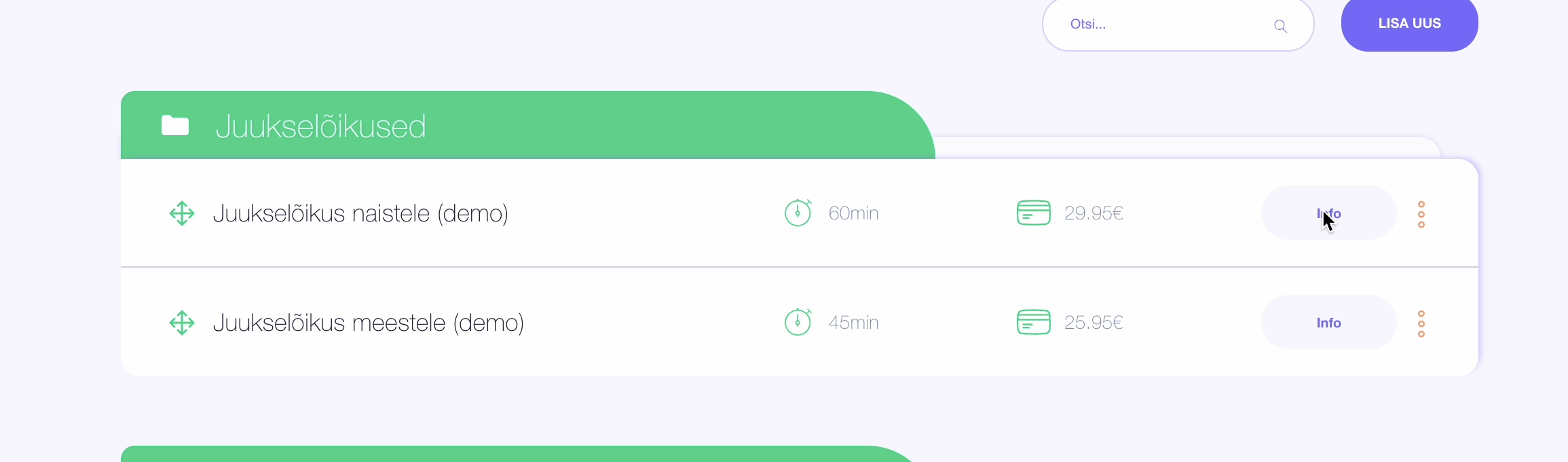
For each of your existing services, click "Info" to edit the service.
Click "Show more" to reveal additional options.
Find the Status dropdown and select "Active, but not available for online booking".
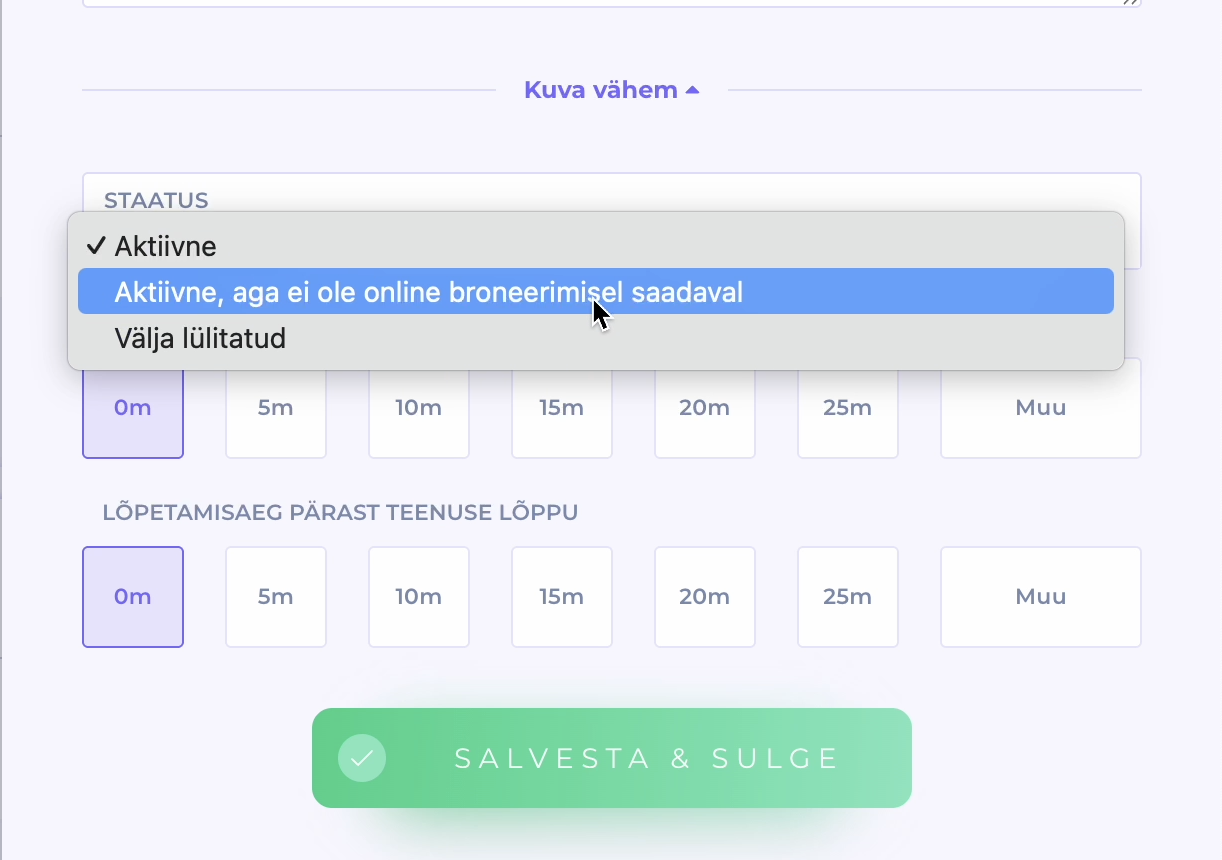
Repeat this for all your services except the redirect service you just created.
This keeps your existing services visible but prevents new online bookings. Save the changes.
Block the SalonLife calendar
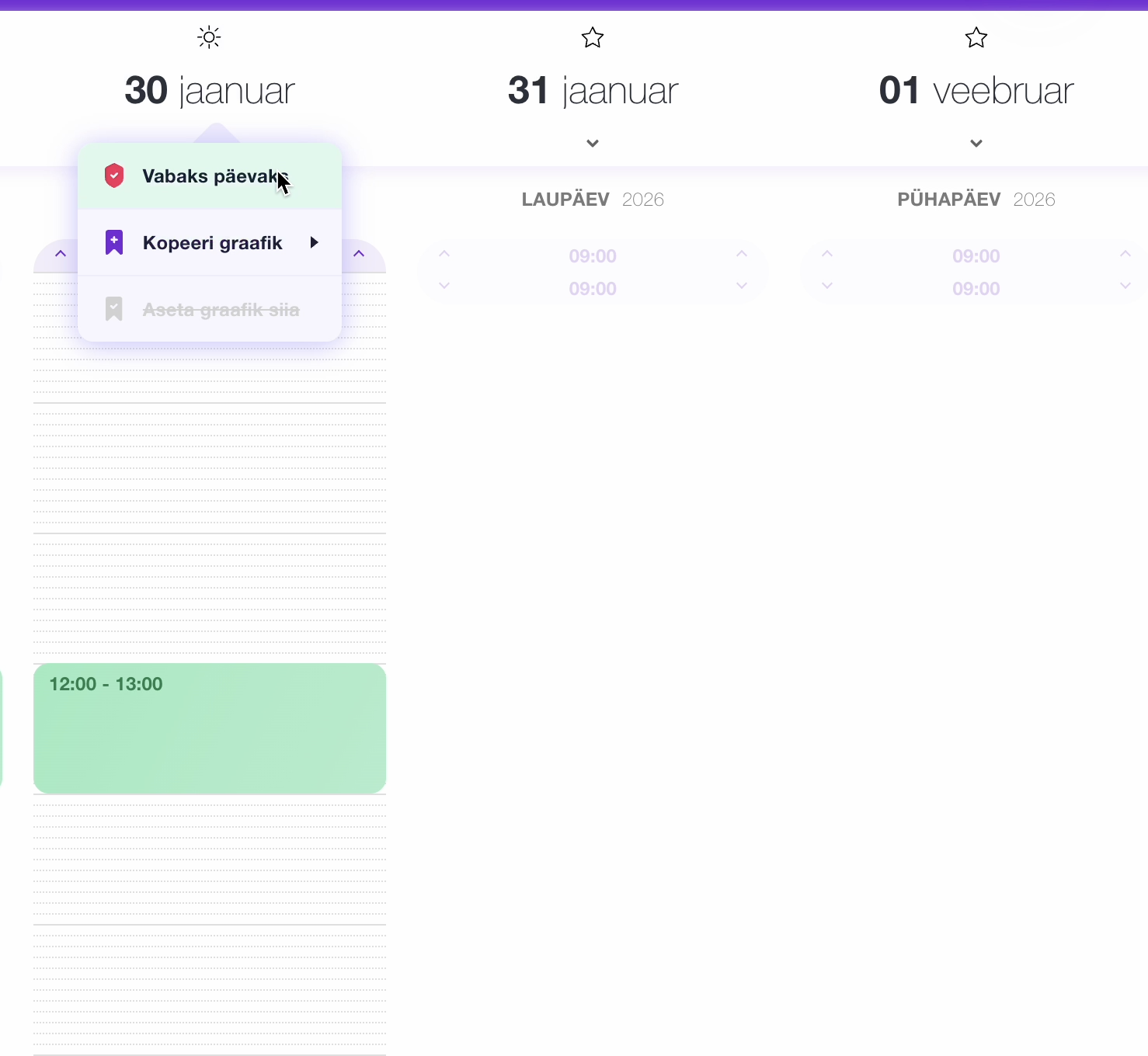
In your SalonLife calendar, mark all days as unavailable so clients can't book appointments there.
Update your salon profile
In SalonLife, go to your salon profile page and update the salon description to: "New booking page: SALONGI-LINK-TAIMLIS".

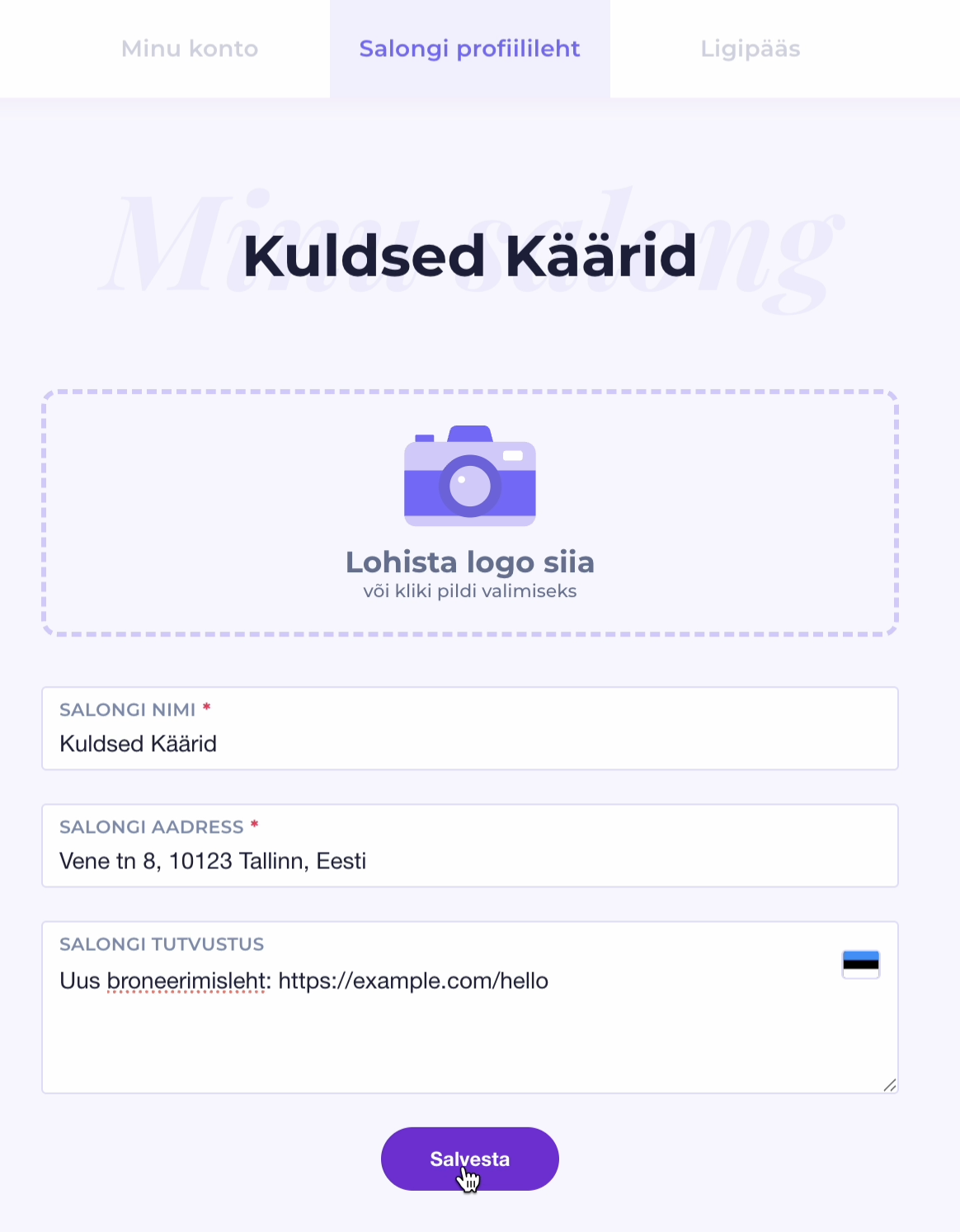
This ensures anyone who visits your SalonLife profile sees your new booking link immediately and that customers don't make bookings in SalonLife anymore.
You're all set! Clients visiting your old SalonLife page will now be directed to book through Taimli, while your existing SalonLife appointments remain intact.
Export your SalonLife data
If you want to import your past and future bookings and client database into Taimli, first export them from SalonLife.
Follow SalonLife's export guide to download your booking and client data.
Taimli's founder personally handles SalonLife imports to ensure accuracy. Email your export file to [email protected] and schedule a migration time together so the switch happens smoothly without needing to re-export data.