
No. There is one PIN per salon. All customers use the same PIN to access your booking page.
Require a PIN Code for Your Booking Page
PIN code gating lets you control who can access your public booking page. When enabled, customers must enter a 4- to 6-digit PIN before they can view your availability and book appointments.
How PIN Gating Works
When a customer opens your booking link, they see a PIN-code screen instead of your availability. The screen shows a prompt to enter their PIN code. Only after entering the correct PIN can they proceed to view your calendar and book.
Enable PIN Gating

Go to Settings from the sidebar and open Booking Settings under Booking & availability
Find the section labeled Require a 4- to 6-digit PIN to open booking page
Toggle the checkbox to enable the gate
Enter a 4, 5, or 6-digit PIN in the field provided
Save your changes
The setting helper text reads: "Customers must enter this PIN before your public booking page will open. Share it directly with customers you want to book."
You cannot enable PIN gating without setting a PIN first. If the toggle is on but no PIN exists, saving will show an error asking you to provide a PIN.
Change Your PIN
When PIN gating is already enabled, your existing PIN appears masked in the settings. To change it:
Click Change PIN next to the masked PIN field
Enter your new 4- to 6-digit PIN
Save your changes
Click Cancel if you want to keep your existing PIN without changes.
Changing the PIN does not close the booking page for customers who already unlocked it. They can keep browsing, but the next time they change their booking details or confirm a booking, the page asks for the PIN again and they must enter the new one.
Turning the gate off and back on without changing the PIN does not relock anyone who already unlocked the page. If you change the PIN while the gate is off, customers with an older unlocked page must enter the new PIN after you turn the gate back on.
Disable PIN Gating
To remove the PIN requirement from your booking page:
Go to Settings from the sidebar and open Booking Settings under Booking & availability
Uncheck the Require a 4- to 6-digit PIN to open booking page option
Save your changes

New visitors can open your booking page without a PIN. A customer who already has the page open may still see the PIN screen until they submit something, and submitting then lets them through without a PIN. Your PIN is preserved if you re-enable the gate later.
What Customers See
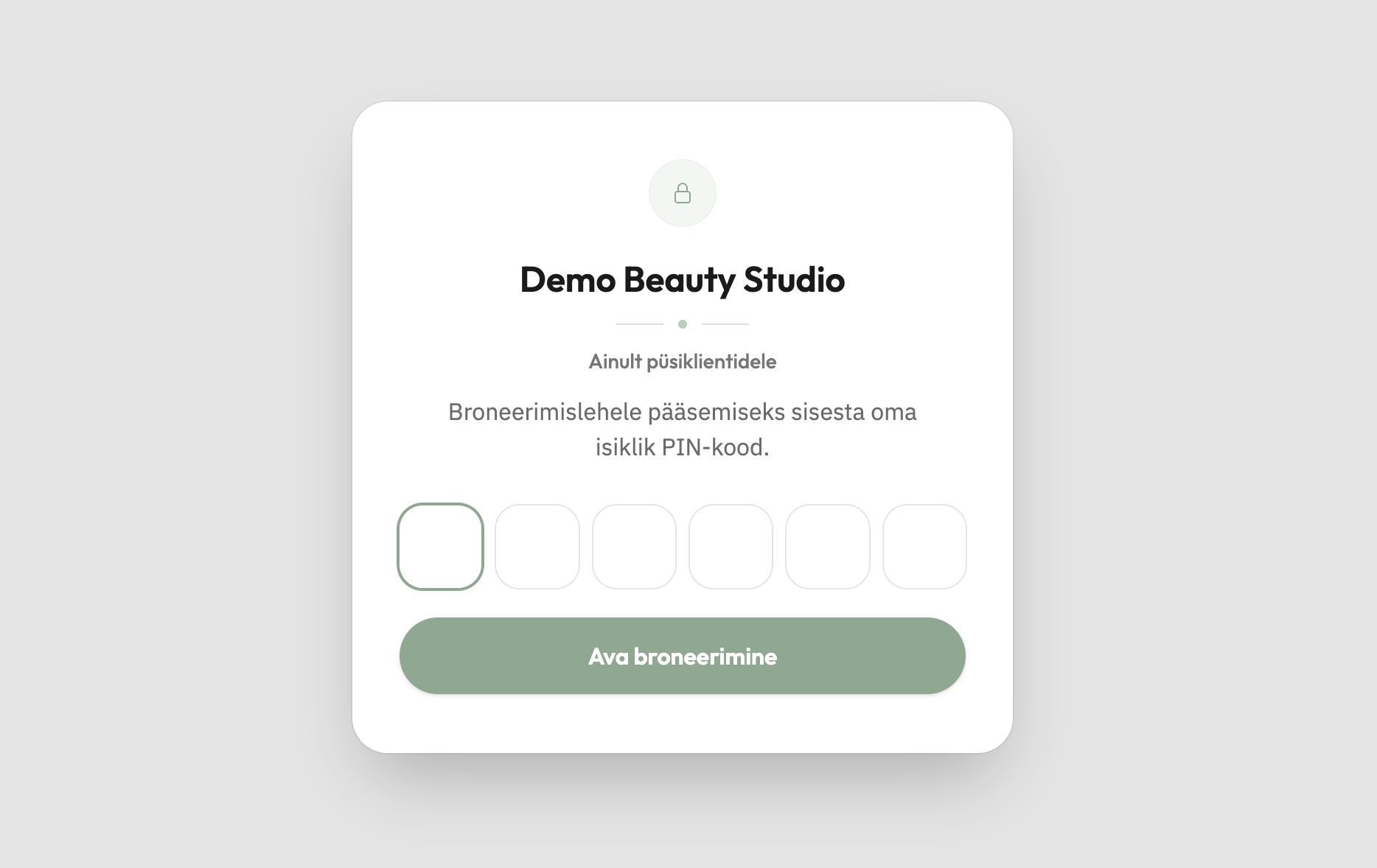
When PIN gating is enabled and a customer opens your booking link:
They see a screen titled Regular clients only
The prompt reads: "Enter your personal PIN code to access the booking page."
They enter their PIN in the field and click Open booking
If correct, the booking page opens and they can proceed normally
If the PIN is incorrect, they see: "That PIN code didn't work." They can try again. After multiple failed attempts, they see: "Too many PIN attempts. Please wait a moment and try again."
Use Cases
PIN gating gives you control over who can book with you. Common scenarios include:
Priority access during peak seasons — Share the PIN with loyal customers so they can book during busy periods like Christmas or New Year when your calendar fills quickly. This rewards repeat clients with guaranteed access while managing demand.
Exclusive client list — Keep your booking page private and share the PIN only with clients you have approved or vetted. Useful for referral-only businesses or specialists with limited capacity.
Distributing Your PIN
The PIN is not displayed anywhere in your public booking flow. You must share it directly with customers you want to grant access. Consider:
Sending it via email or SMS to your VIP client list
Including it in loyalty program communications
Sharing it verbally during appointments to clients you want to invite back
Posting it in a private customer group or membership portal
Your staff can change and share the PIN, but no one can view the current PIN once it is set: the settings screen shows it masked. Customers cannot retrieve the PIN from your booking page, so share it directly with them.
Common Questions
Can I have different PINs for different customers?
Do I need to enable PIN gating for my booking page to work?
No. PIN gating is optional. By default, your booking page is publicly accessible. Enable PIN gating only if you want to restrict access.
Can customers book without a PIN if they have a direct appointment link?
No. PIN gating applies to your entire public booking page. Any route that leads to your booking page requires the PIN when the gate is enabled.
What if I forget my own PIN?
As a salon staff member, you can set a new PIN in Settings at any time. The masked display shows that a PIN exists, and the Change PIN button lets you set a new one. You cannot view your PIN code once it is set.
Does PIN gating affect existing appointments?
No. PIN gating only controls access to your booking page for new bookings. Existing appointments are unaffected.
Was this helpful?
Was this helpful?