
How customers use My bookings
My bookings is the customer page where clients see upcoming and past appointments made with their email across every Taimli salon. Customers open a booking from the list to view details, add it to a calendar, get directions, book again, or cancel when cancellation is allowed.
What My bookings shows
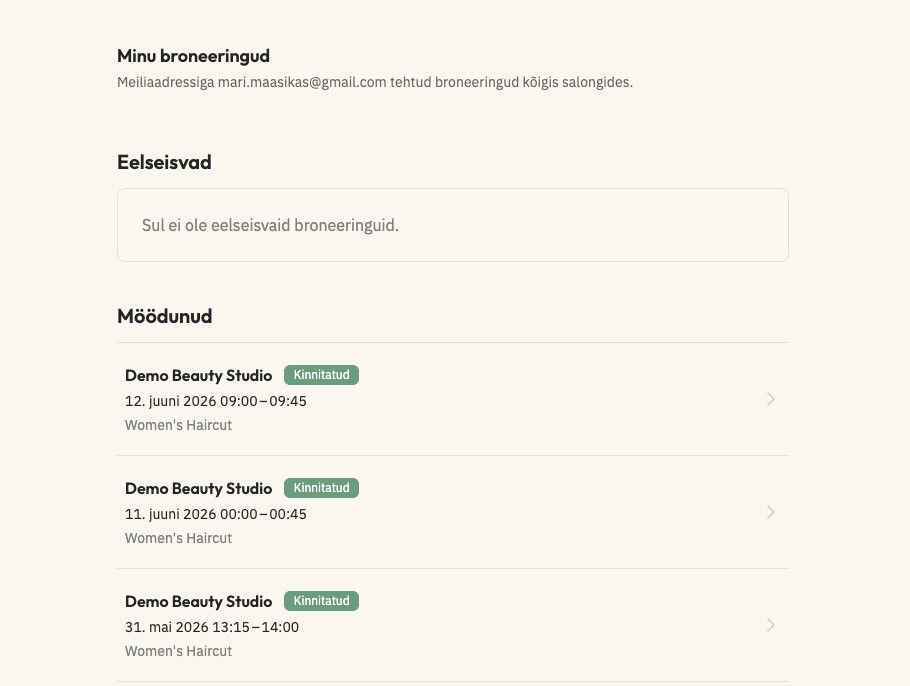
The page is titled My bookings and lists appointments under two sections: Upcoming and Past.
Upcoming includes non-canceled bookings whose start time is still in the future. If there are none, customers see You have no upcoming bookings.
Past includes bookings that already started, plus canceled bookings. If there are none, customers see You have no past bookings.
The subtitle names the signed-in email and states that bookings are shown across all salons. Each row shows the salon name, status badge, date and time in the customer's locale, and the service. Status badges are Pending, Confirmed, or Canceled.
When a booking has more than one service, the row shows the first service name followed by how many more services are included. Customers can Log out from the page header. The list itself has no cancel or reschedule buttons; opening a row goes to that booking's public details page.
Open My bookings when already signed in
Signed-in customers can open the list directly from their account home or from a booking details page.
From the account home
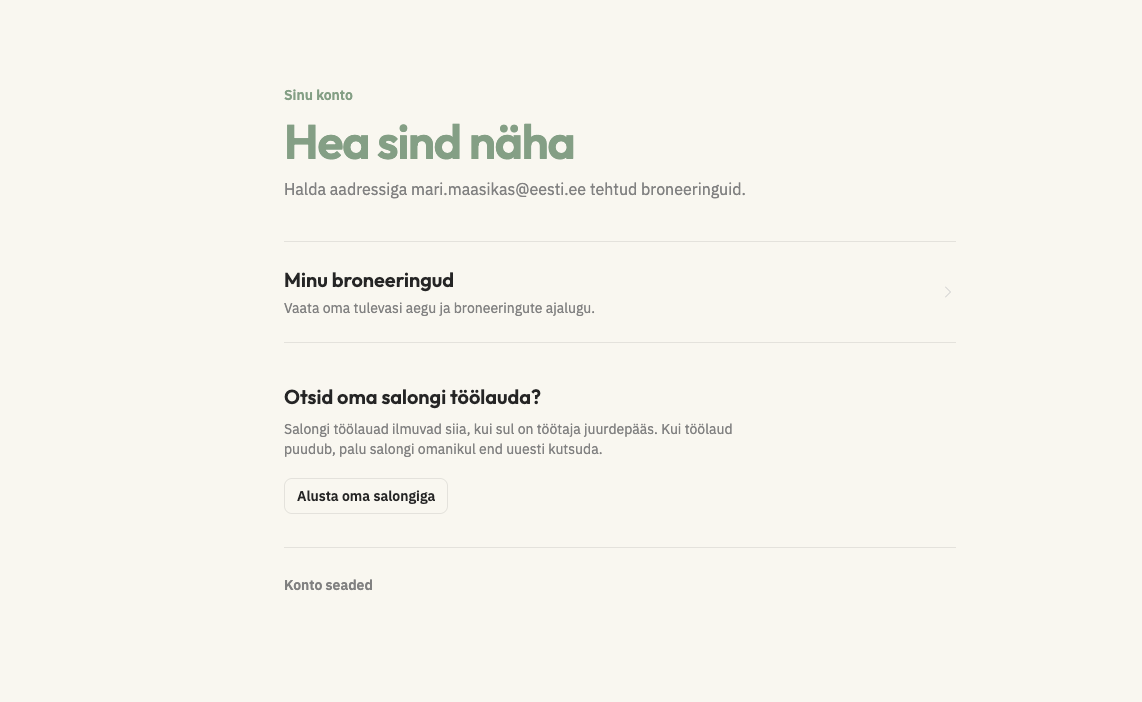
After login, customers who are not salon staff land on their account home.
Sign in with the email used for bookings.
On the account home, open the My bookings card labeled See your upcoming appointments and booking history.
The browser opens
/me/bookings.
Staff members with one salon membership are redirected straight to that salon's admin after login. Staff with multiple memberships see a salon chooser for admin access instead of this account home.
From a booking details page
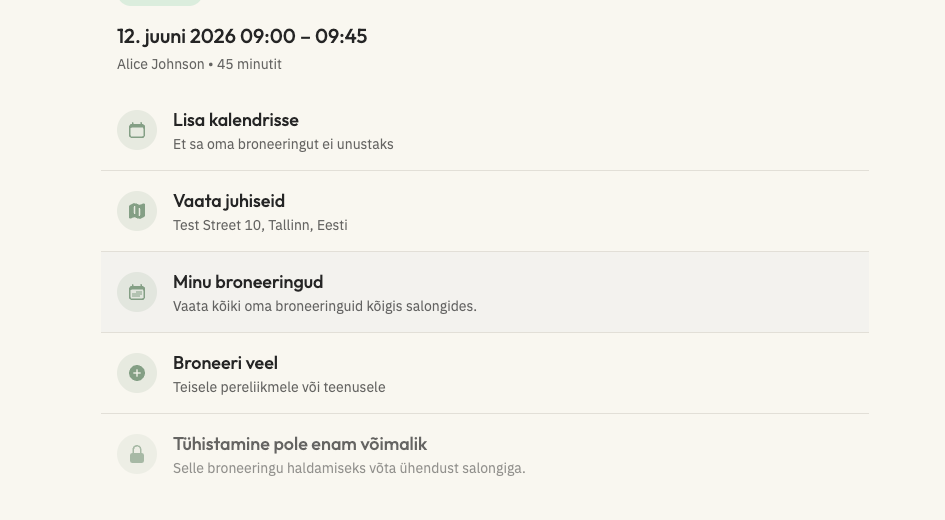
Every public booking has a details page at /b/ followed by the booking's short ID.
Open the booking details page for the appointment.
Select My bookings.
The browser opens
/me/bookings.
Open My bookings with an email access link
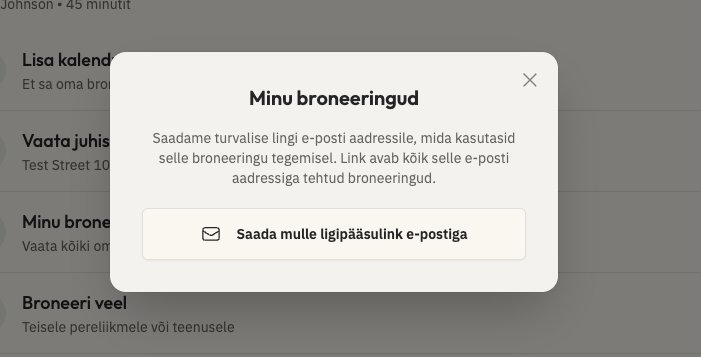
Customers who are not signed in can request a one-time email link from a booking that has their email on file.
Open the public booking details page for an appointment that includes the customer's email.
Select My bookings to open the bookings access dialog.
Select Email me the access link.
When sending succeeds, close the confirmation with Got it.
Open the email and either click the login link or enter the six-digit code under Or enter this login code: on the login page. The link and the code reach the same My bookings page. After sign-in, the customer is returned to
/me/bookings.
The access link is a magic login link that stays valid for 15 minutes. If it is invalid or expired, login shows Magic link is invalid or it has expired.
Delivery failure shows We couldn't send the email. Please try again. Rate limiting shows Too many requests. Try again later. The My bookings access path is not offered when the booking has no customer email.
Sign in directly to My bookings
Anyone can open /me/bookings directly. If they are not signed in, Taimli redirects them to login and returns them to My bookings after a successful sign-in.
Go to
/me/bookings.Complete login when prompted.
After sign-in, the My bookings page loads for that email.
Open a booking from the list
Each row on My bookings links to that appointment's public details page at /b/ plus the booking short ID.
On the details page, confirmed bookings can show these actions:
Add to calendar opens a dialog with Google Calendar and Other calendars (downloads an
.icsfile).Get directions opens directions to the salon location.
My bookings returns to the full history list.
Book another appointment opens the salon's public booking page.
Cancel appointment when customer cancellation is available, or Cancellation unavailable when it is not.
The details page also shows the salon name, status, date and time, worker name with duration, services, and total when present. When a booking has several professionals, the details page lists each visit part with its professional, times, services, and any wait, and the calendar event from Add to calendar covers the whole visit with every professional and part. Staff notes on the booking are not shown to customers.
When any booked service has Hide duration from customers enabled, the duration is omitted from the public booking details page and from the Google Calendar and Other calendars event metadata. The appointment date and time remain available.
When a booking is pending or canceled, the main action row is disabled. Pending bookings show Booking is pending approval. Canceled bookings show Booking canceled with a Book another time button that opens the salon's public page.
Cancel a booking from the details page
Customers cancel from the booking details page, not from the My bookings list. Cancellation is available only when customer cancellations are enabled for that booking's worker or salon, and the appointment starts more than 24 hours from now.
Open the booking from My bookings or from a booking link.
Select Cancel appointment.
Confirm in the Cancel Booking dialog.
The page reloads the booking and shows Booking successfully canceled. The booking then appears under Past on My bookings with status Canceled.
If cancellation is not available, customers see Cancellation unavailable with Contact the salon to manage this booking. Attempts inside the 24-hour window show Booking is in less than 24 hours. Contact the salon to cancel.
Salon staff can still move or cancel appointments from the admin calendar when a customer cannot self-serve. See Managing Appointments.
What customers cannot do in My bookings
My bookings is a history and access page. Customers cannot reschedule from the list, edit booking details there, or see staff-only notes. To change time or service, they need the salon to update the appointment, or they can cancel when allowed and book again from the salon's public page.