
Birthday offers
Birthday offers automatically email customers a discount for their birthday and can apply that discount to their booking without a code. You turn the feature on in Discounts and choose the offer window, discount size, and email timing; the feature sends email only, so customers also need email marketing consent.
How birthday offers work
Once enabled, the system checks every hour for customers whose birthday offer window is coming up and sends each eligible customer one email ahead of the window with a link to your booking page. The offer then lasts for the whole window you configured.
The feature does three things: emails opted-in customers ahead of their birthday offer window, shows a Gift mark on bookings that fall inside the window, and optionally applies the discount automatically when they book.
Birthday offers are delivered by email only. The email text is fixed, so there are no message templates to edit.
Each customer receives at most one birthday offer email per anniversary year. The system records the year an offer was sent and skips customers who already got one.
Enable birthday offers
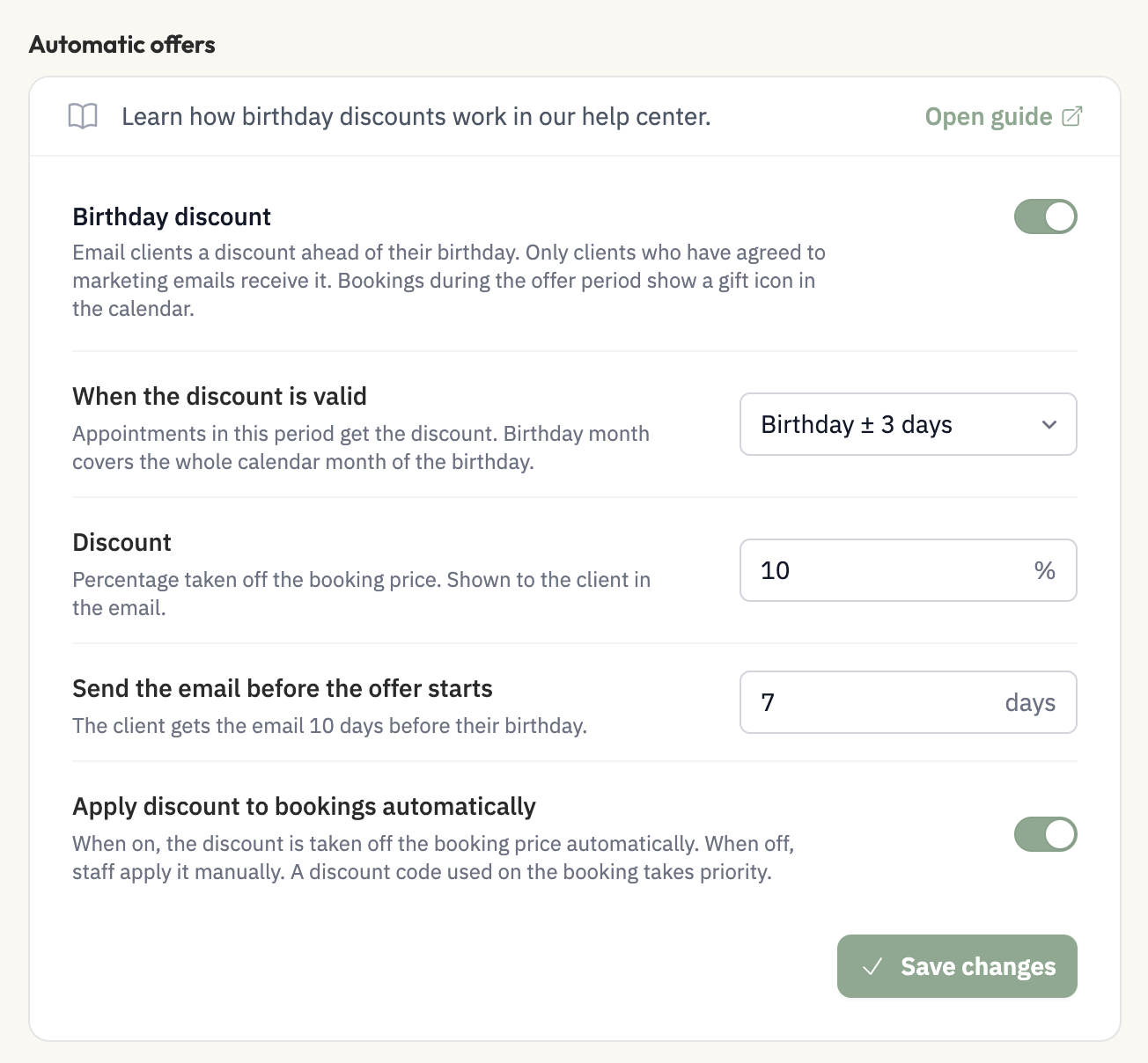
You need permission to access Discounts to change these settings. The birthday offer settings live in the Automatic offers section of the Discounts page, on the Birthday discount card.
Open Discounts from the salon admin menu.
Find the Automatic offers section and the Birthday discount card.
Switch on Birthday offers. The settings form appears on the card.
Choose When the discount is valid: Birthday ± 3 days (the default, seven days centered on the birthday) or Birthday month.
Enter a Discount between 1 and 100 percent. The default is 10.
Enter Send the email before the offer starts in days, between 0 and 60. The default is 7.
Optionally switch on Apply discount to bookings automatically. It is off by default.
Click Save changes. A Birthday offer saved message confirms the save.
If online booking does not ask customers for their birthday, the Birthday discount card warns that new clients will not get the offer unless they already have a saved birthday. The card links to Manage booking fields so you can turn birthday collection on.
Collect birthdays first
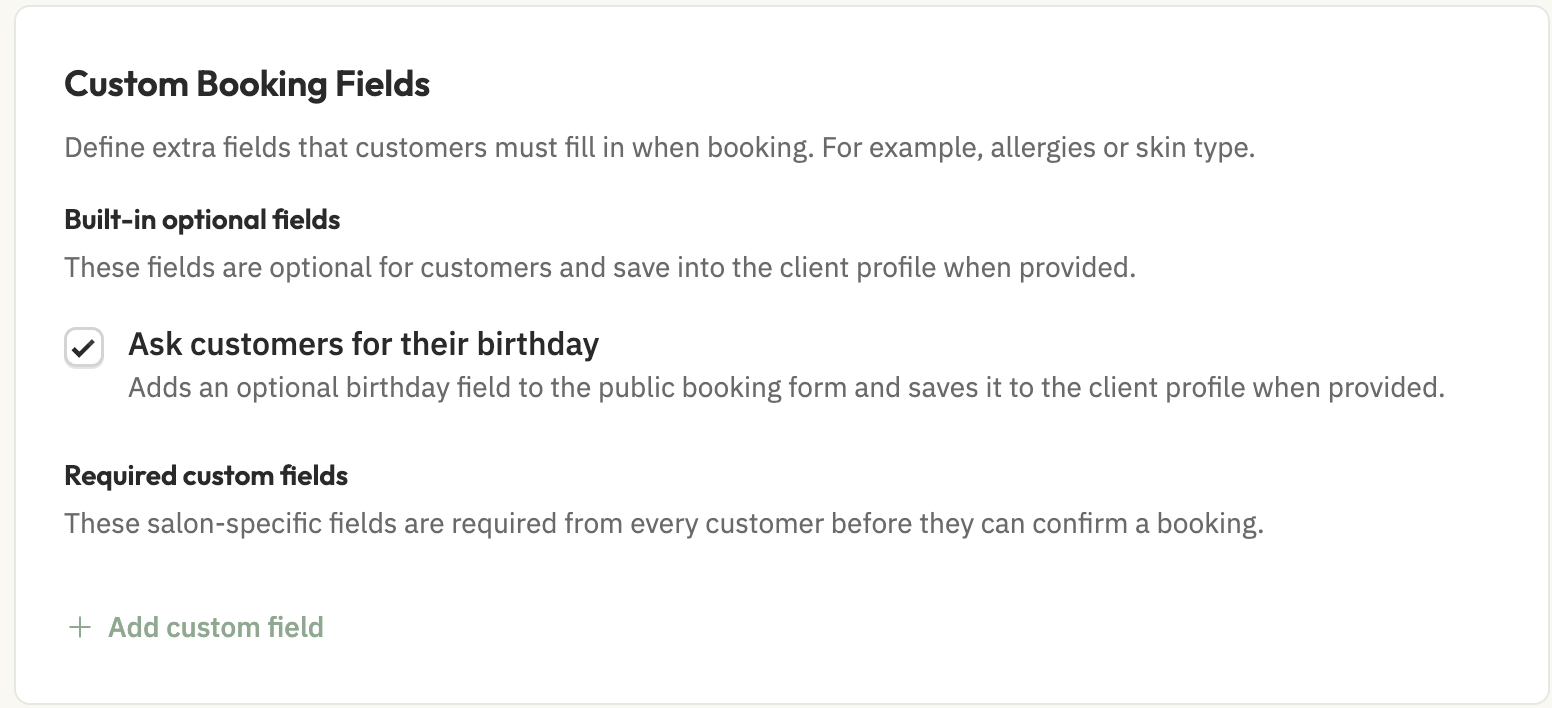
Birthday offers need a saved birthday and email marketing consent per customer, and the two are controlled by separate settings. The Ask customers for their birthday setting in Settings, under Custom Booking Fields, adds an optional Birthday field to your public booking form; birthday offers do not turn on birthday collection on their own.
The booking form also shows a consent checkbox for occasional rebooking messages and offers from your salon. A customer who checks it has email marketing consent. A saved birthday alone is not enough to receive a birthday email.
Offer windows and email timing
The offer window defines when the discount applies, and the email lead time defines when the email goes out, not how long the offer lasts.
Birthday ± 3 days: seven days, from three days before the anniversary through three days after.
Birthday month: the full calendar month that contains the birthday.
February 29 birthdays count as February 28 in non-leap years.
Windows are evaluated in your salon's timezone.
The email goes out on the send date: the window start minus the lead time. For Birthday ± 3 days that is three days before the anniversary minus the lead time; for Birthday month it is the first day of the month minus the lead time.
Emails are sent when the salon's local date matches the send date, between 09:00 and 17:00 salon time.
Who receives the email
A customer receives the birthday email only when every condition below is met.
Birthday offers are enabled for your salon.
The customer has a saved birthday and an email address.
The customer has email marketing consent, for example by checking the offers box on the booking form.
The email address has not bounced.
The customer is not blocked from online booking.
The salon's current date is the email send date and the local time is between 09:00 and 17:00.
The customer has not already received an offer for that anniversary year.
What customers see
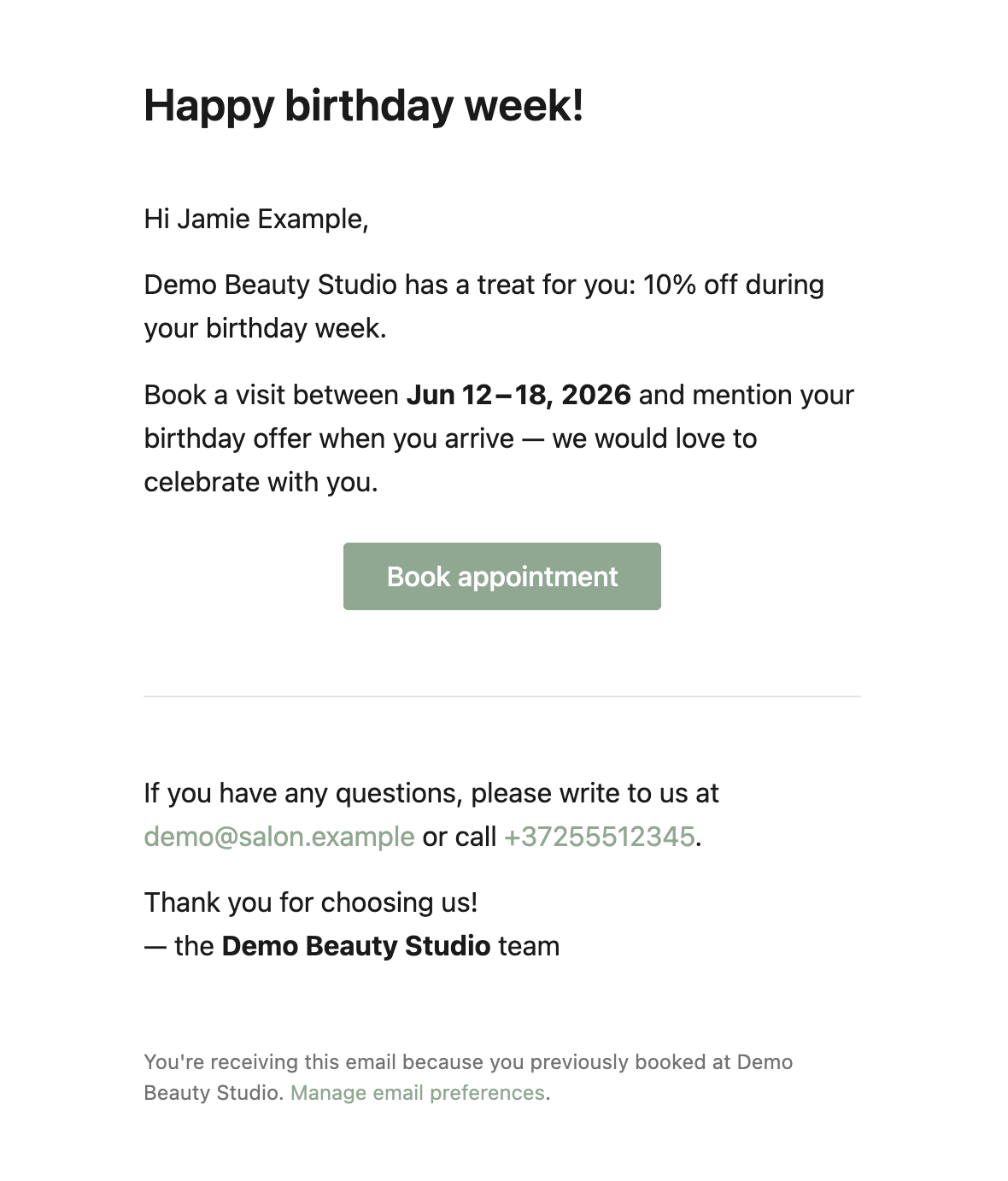
The email announces the discount and links to your booking page; whether the discount applies on its own depends on your automatic application setting.
The subject line is "A birthday treat from" followed by your salon name, with a heading of "Happy birthday week!" or "Happy birthday month!" depending on your window choice. The email greets the customer by name, states the discount percentage and window, and includes a Book appointment button that opens your booking page. A footer link lets customers manage their email preferences.
With Apply discount to bookings automatically on, the email tells customers the discount is applied automatically when they book online. With it off, the email tells customers to book a visit and mention their birthday offer when they arrive.
Automatic discount at booking
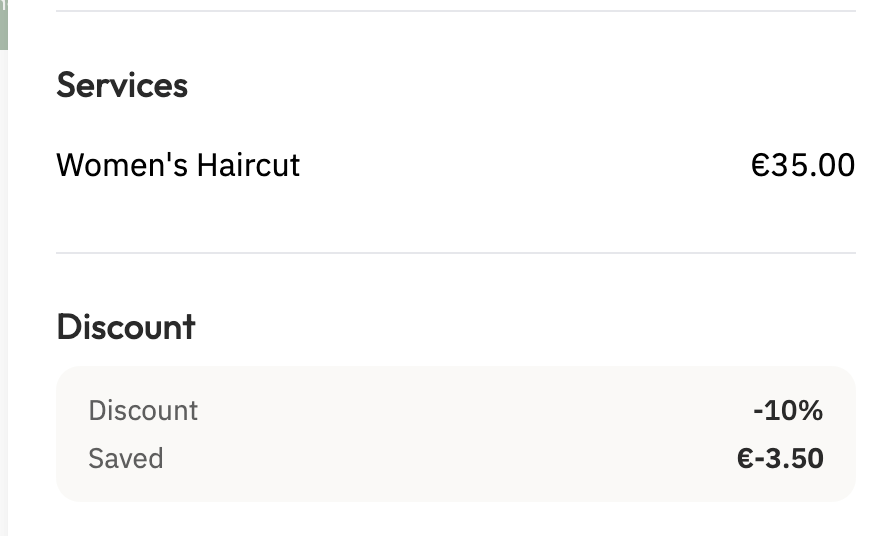
With Apply discount to bookings automatically on, an eligible booking gets the discount without a code: birthday offers are enabled, the discount is a whole percentage between 1 and 100, the window is Birthday ± 3 days or Birthday month, and the appointment date falls inside the window.
With it off, staff apply the offer manually instead. The discount is calculated in the salon's timezone and applies to each service in the booking. On the public booking details page it appears as a Discount row.
Discount codes take priority over birthday offers. When a customer uses a valid discount code, the code's pricing is used instead; if the code is then removed, the birthday discount is recalculated when the booking is still eligible. See Discount codes for how codes work.
Booking changes never duplicate the discount: changing services replaces the existing birthday discount, and rescheduling a booking into the window applies it while rescheduling out of the window removes it, as described in Managing Appointments. Changing only the assigned worker does not refresh the price when the appointment time is unchanged. Paid bookings keep their settled price, and manual price overrides stop automatic birthday repricing.
Birthday markers in the calendar
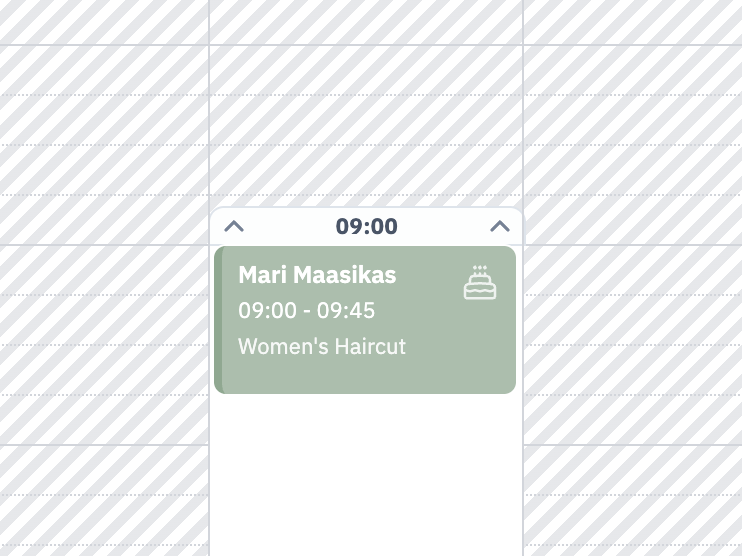
Bookings that fall inside a customer's birthday offer window show a Gift label in the calendar.
The marker follows the appointment's scheduled date, so a future appointment inside the window carries the Gift label even when the customer's birthday is still ahead.
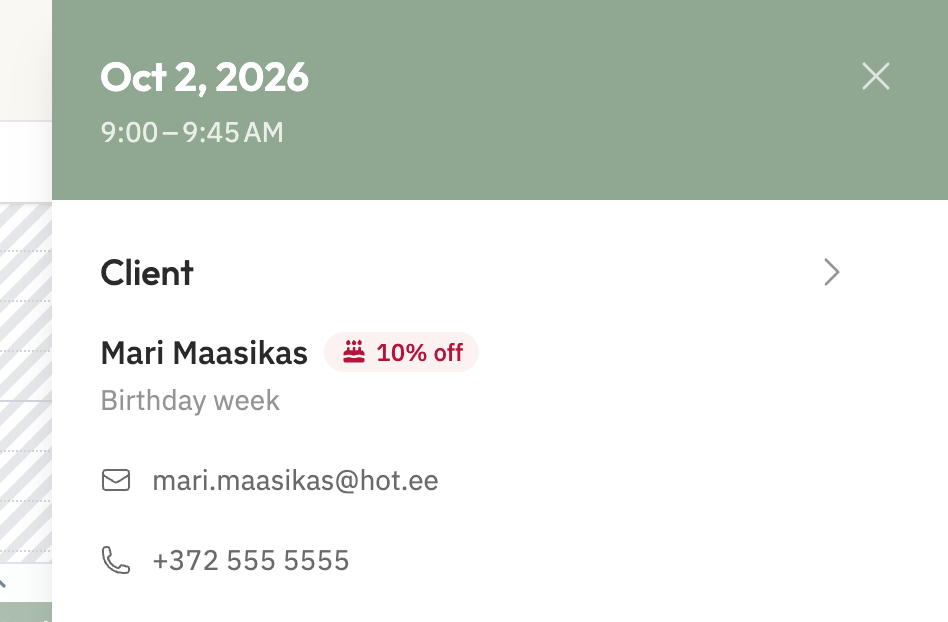
Booking details show "Birthday today" when the appointment falls on the customer's birthday, and a "Birthday week" or "Birthday month" label with the discount percentage when the appointment falls inside the offer window. Outside the window, the ordinary formatted birthday date shows instead. When offers are disabled, the birthday date still shows but the offer labels disappear. Customers without a saved birthday get no marker.
Disable birthday offers
Switch off Birthday offers on the Birthday discount card in Discounts to stop new birthday emails.
Open Discounts from the salon admin menu.
Switch off Birthday offers on the Birthday discount card.
Click Save changes.
Emails already queued are checked against the eligibility conditions again right before sending, so no birthday emails go out after the feature is disabled.
Tips
Turn on Ask customers for their birthday before enabling offers, so you have birthdays to target.
Set the email lead time so the email arrives before the window starts; the offer itself lasts the whole window.
Use the Gift marker in the calendar to spot bookings inside the window, and honor mention-at-arrival offers when automatic application is off.
Birthday emails are separate from rebooking emails. See Rebooking Notifications for that feature.