
Blocking Time for Breaks and Time Off
Block time on your calendar when you're unavailable. Use a Personal event or a Work event for part of a day, or a Free day for a whole day off. Blocked time is removed from your online booking page, so clients can't book it.
Ways to block time
Personal event: personal time such as errands, appointments, or vacation.
Work event: work blocks such as lunch breaks, team meetings, or admin time.
Free day: removes all availability for a whole date.
Personal and Work events both block client bookings. The difference is only for your own organization.
Block time using the + button
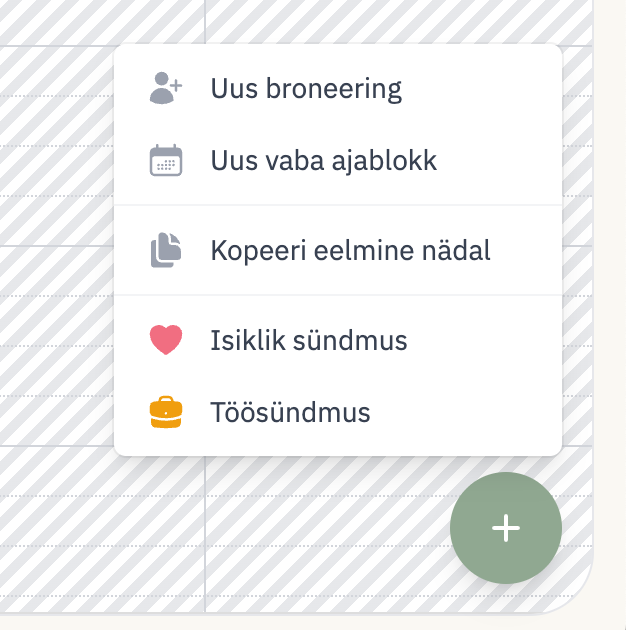
On the calendar, click the + button in the bottom-right corner.
Select Personal event or Work event in the add menu. The menu also holds New appointment and New availability slot.
Fill in the event form:
Date, Start Time, and End Time
Duration, with shortcuts for 15, 30, 60, and 120 minutes
Title (optional), for example "Doctor appointment" or "Team meeting"
Notes (optional)
If your salon has more than one worker, the form also has a worker selector.
Click Create Event.
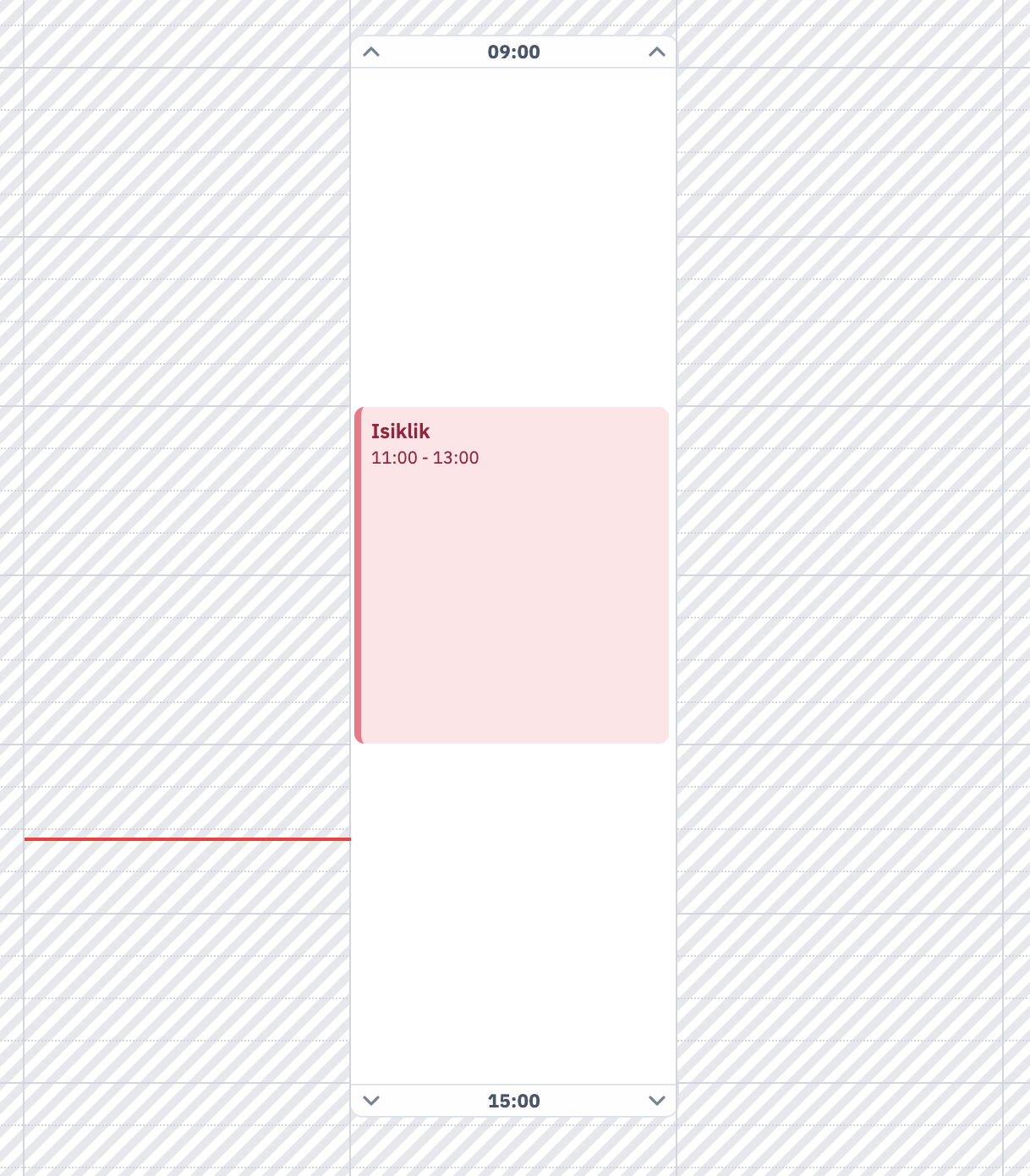
Block time by selecting it on the calendar
Click or drag on an open spot to select the time you want to block. A popup opens with New appointment and New availability slot, plus Personal and Work under Other options. Choose Personal to block the time for yourself, or Work to block it for admin work. The event form opens so you can confirm the details.
Block an entire day
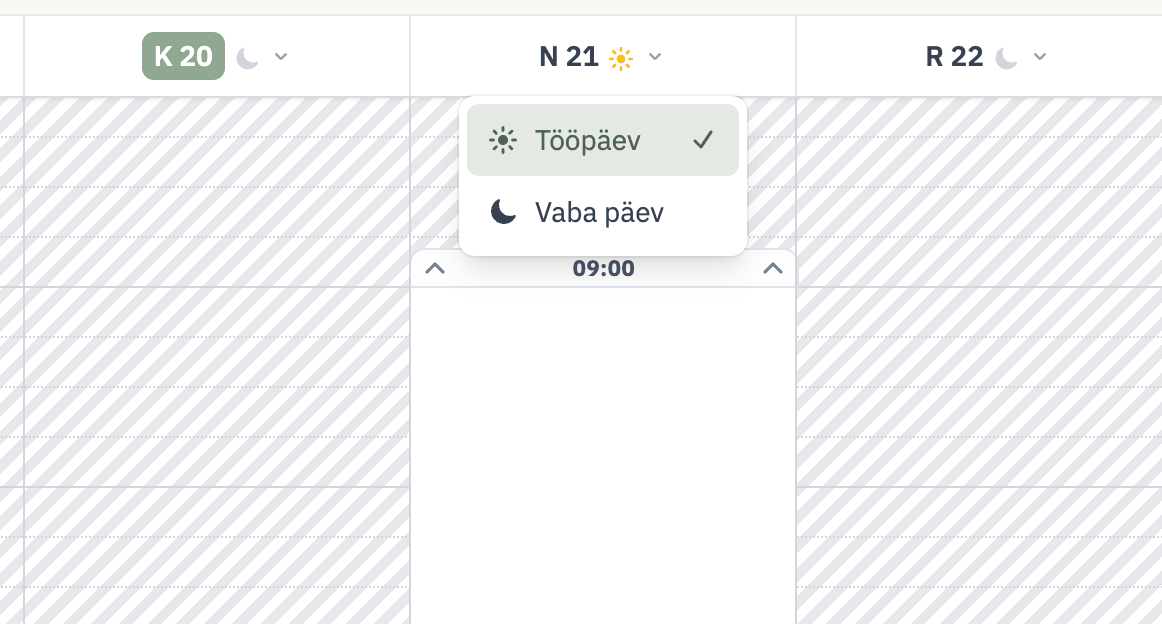
Click the date header for the day you want to take off.
Select Free day in the dropdown. (The same dropdown also offers Work day to restore availability.)
You can't mark a day as free when it already has bookings. Cancel or reschedule those bookings first, then set the Free day.
Move or delete blocked time
To move an event, drag it to a new time or day. If the new spot overlaps another event, the move fails with "Cannot move: overlaps with another event".
To change or remove an event, click it. The edit dialog has the same fields as the event form, plus Save Changes and a trash-icon Delete Event button. Deleting asks for confirmation, then removes the block from the calendar and your booking page.
What blocked time means for bookings
Active Personal events, Work events, and Free days hide the covered slots from your online booking page, so clients can't book that worker during them.
You can still add appointments yourself over blocked time or over existing bookings. The admin calendar does not warn or stop this, so check the day before you save an overlapping appointment.