
Sync Taimli bookings to Google Calendar
Connect Google Calendar to see your Taimli bookings there automatically. This sync is one-way from Taimli to Google Calendar, so you should always make booking changes in Taimli.
This feature only syncs confirmed bookings assigned to your worker profile. Coworkers' bookings are not included.
What Google Calendar sync does
When you connect Google Calendar, Taimli sends your confirmed bookings to your Google Calendar automatically.
This helps you see your Taimli schedule alongside the rest of your day, but Google Calendar does not control your booking calendar in Taimli.
Sync is one-way from Taimli to Google Calendar.
Only bookings assigned to you are synced.
Only confirmed bookings are synced.
Changes made in Google Calendar do not sync back to Taimli.
To reschedule, edit, or manage appointments, use Managing Appointments.
Before you connect Google Calendar
You can only use this feature if your account has a worker profile in the salon. If you do not have a worker profile, the Google Calendar section will not be available for your account.
Google Calendar sync also does not replace your availability setup in Taimli. Your booking calendar still follows the availability and blocked time you manage in Taimli.
Use Setting Up Your Availability to open bookable time, and Blocking Time for Breaks and Time Off to block time in Taimli.
How to connect Google Calendar
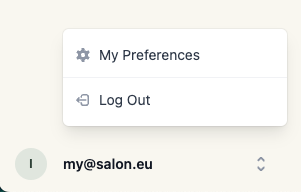
Open My Preferences.
Find the Google Calendar section.
Click Connect Google Calendar.
Complete the Google authorization flow.
Return to Taimli and confirm the connection status shows as connected.
After you connect Google Calendar, Taimli starts syncing your confirmed bookings one-way to Google Calendar.
How to manage the connection
In the Google Calendar section in My Preferences, you may see these actions and statuses:
Connected or Syncing when the integration is working
Needs attention if the connection needs to be restored
Reconnect to restore syncing
Disconnect to remove the connection
If the sync stops working and the status shows Needs attention, click Reconnect and complete the authorization flow again.
If you no longer want Taimli to sync bookings to Google Calendar, click Disconnect.
Important limitations
Google Calendar is a destination for synced bookings, not the source of truth.
Changes in Google Calendar will not update appointments in Taimli.
Coworkers' bookings are never synced to your Google Calendar.
This article only covers booking sync. For a broader view of how Taimli calendar features work, see Calendar Overview.
Best practice
Use Taimli to manage appointments and availability, and use Google Calendar as a read-only copy of your confirmed bookings. That keeps your booking data accurate and avoids changes getting lost.