
Setting Up Your Availability
Your calendar starts completely blocked. Clients can't book you until you explicitly open time slots. This section shows you how to set your working hours and create availability.
Before you begin: Make sure your services are configured with at least one staff member who can perform them. Services without assigned staff won't be bookable.
Why Everything Starts Blocked
Your calendar defaults to fully blocked to prevent unwanted bookings. You choose exactly when clients can book you by creating availability blocks.
Days with no availability show a moon icon. Days with availability show a sun icon.
Changing the Calendar hours setting in Settings doesn't open slots. It only changes which hours are visible on your admin calendar (see Choose the hours shown on your calendar).
Set Working Hours for a Day
The fastest way to open availability is to set working hours for an entire day. To repeat the same hours every week, save them once with Set your weekly hours.
1. Click the date header (like "Thu 05") for the day you want to set
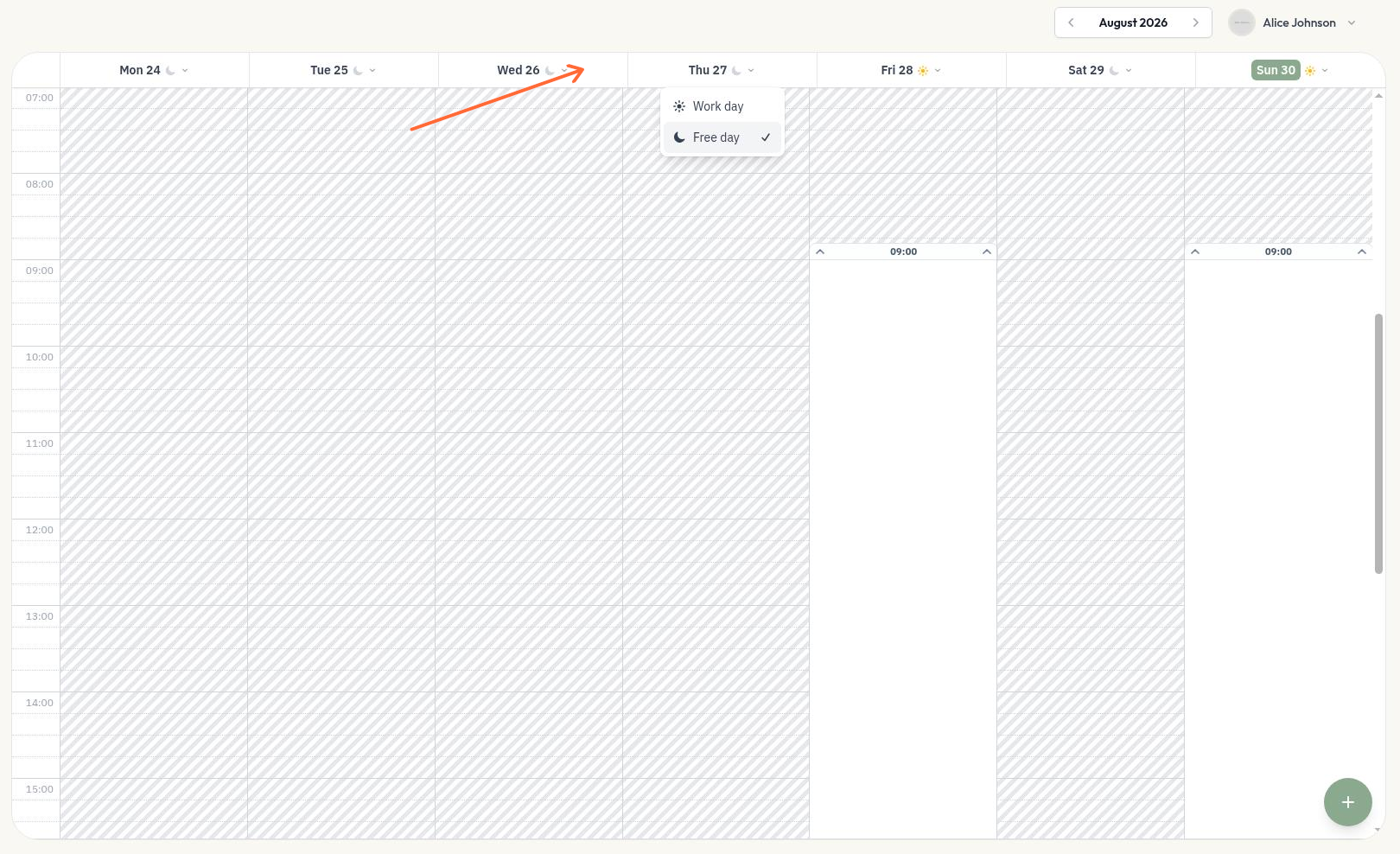
2. Select "Work day" from the dropdown
3. Enter your working hours (for example, 9:00 AM to 6:00 PM)
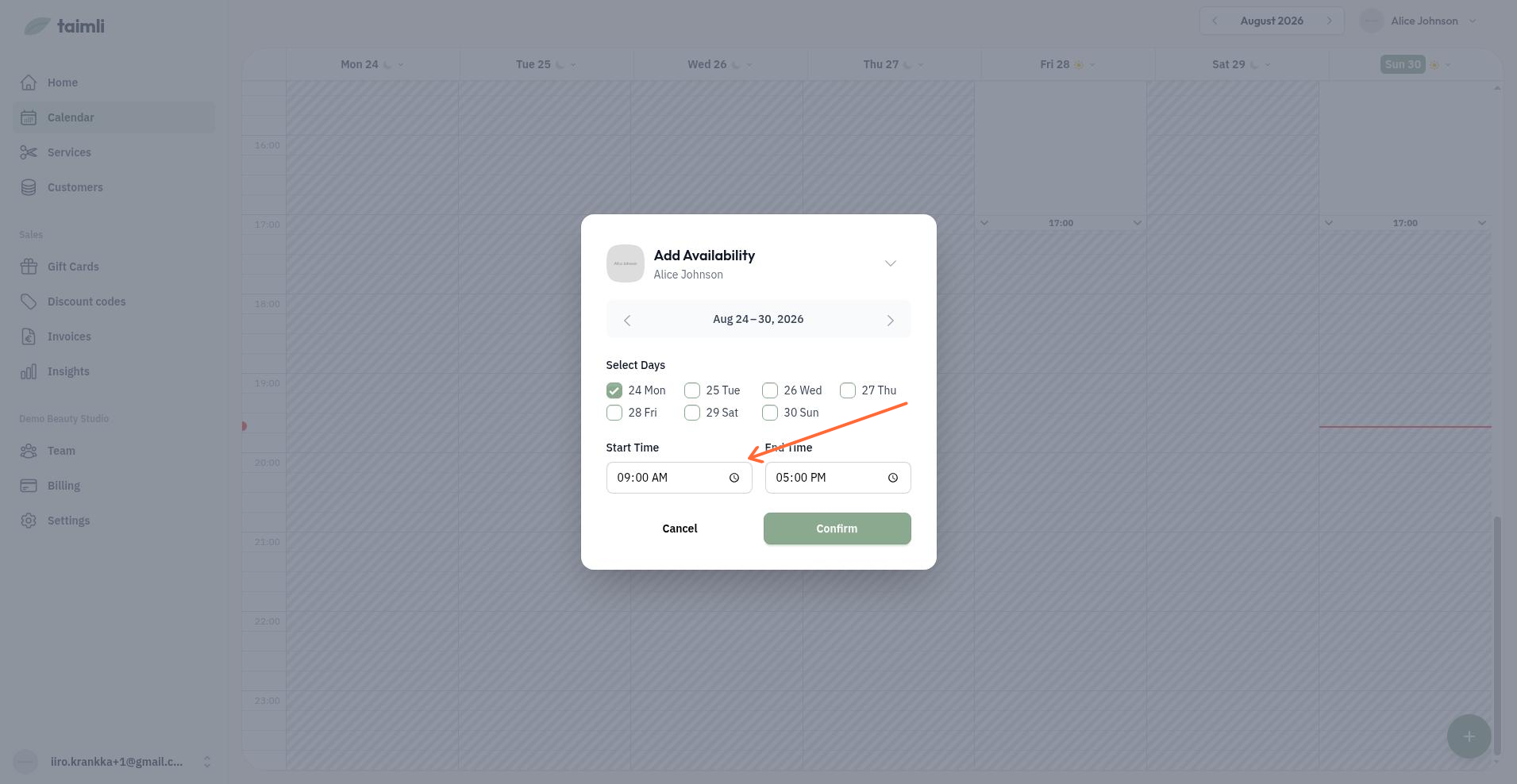
4. Save
The entire time range now appears as white blocks on your calendar, showing clients can book during those hours.
Create Specific Availability Slots
For more control, create individual availability blocks instead of opening an entire day.
Method 1: Use the + button
Click the blue + button in the bottom-right
Select "New availability slot"
Choose the date, start time, and end time
Save
Method 2: Drag on the calendar
Click and drag on an empty spot in your calendar
Select "New availability slot" from the popup
Adjust the time if needed and save
Copy Last Week's Availability
If you work the same hours each week, copy your entire schedule from last week instead of recreating it.
Navigate to the week you want to fill in
Select the worker from the dropdown (this feature doesn't work in "Everyone" view)
Click the blue + button in the bottom-right
Select "Copy previous week"
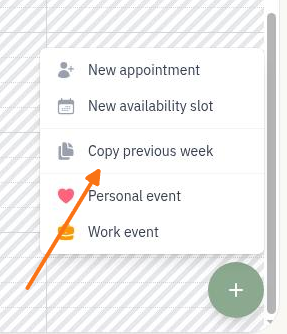
Your calendar refreshes with all availability slots from the previous week copied to the same days and times in the current week.
If the previous week has no availability for the selected worker, you'll see a message and nothing will be copied.
What Availability Looks Like
Availability blocks appear as white rectangles on your calendar. They show clients when they can book you, subject to booking settings such as your minimum booking lead time and Online booking window settings.
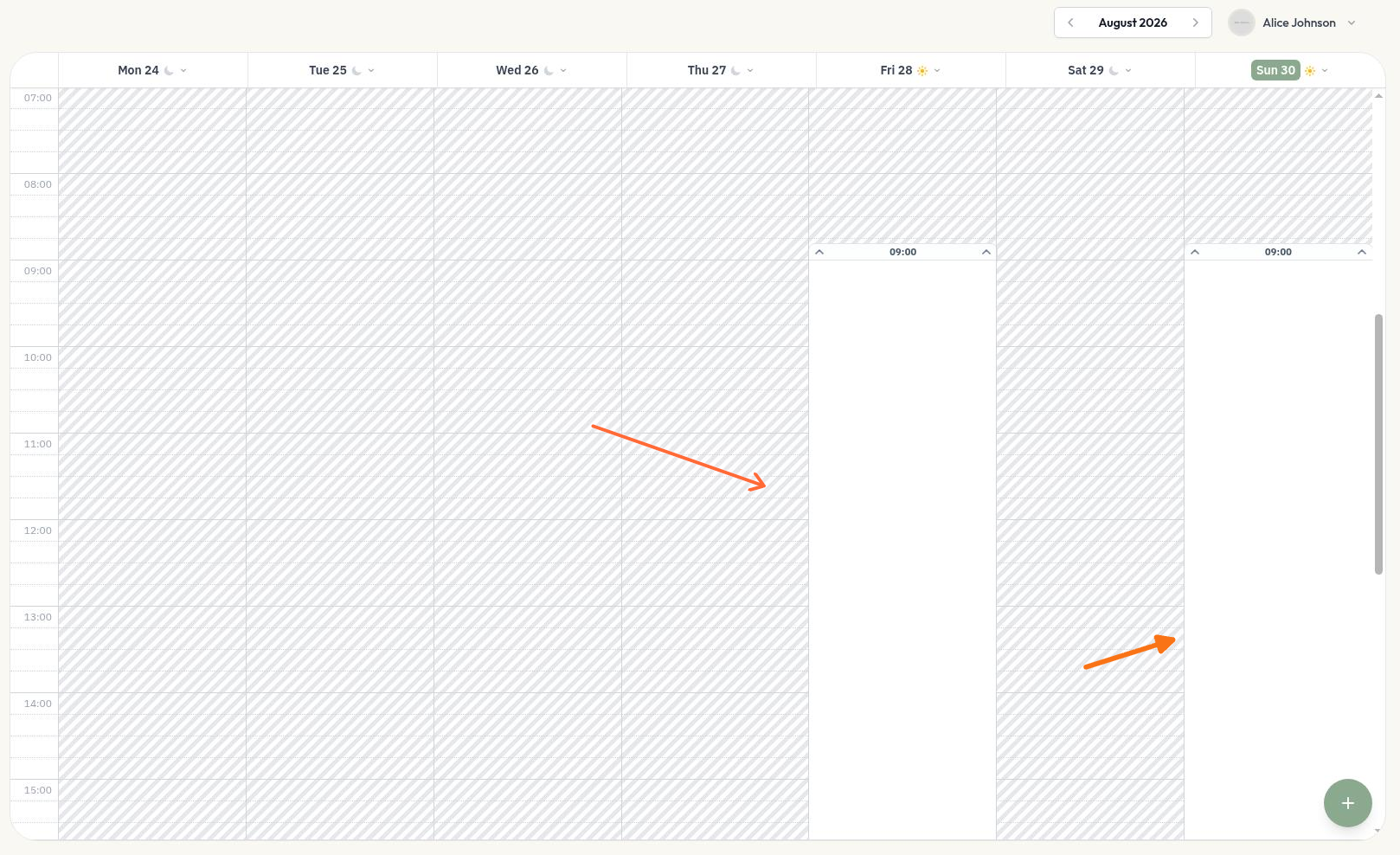
Work days display a sun icon in the date header. Free days (no availability) show a moon icon.
Remove Availability
To close a time slot:
Click the date header
Select "Free day"
You can't remove availability if appointments are already booked. Cancel or move those appointments first.
To delete a specific availability block, drag to select it and choose delete from the options.
Tips
Time snaps to 15-minute increments when you drag or select on the calendar — you can't create odd blocks like 9:07 AM that way.
Repeat weekly schedules faster — Use "Copy previous week" instead of manually setting hours for each day
Leave buffer time — Don't schedule back-to-back all day. Use service-level "extra blocked time" for cleanup between appointments