
Managing Appointments
Appointments are bookings made by clients or created manually by you. This guide shows you how to create, move, resize, and reassign appointments in your calendar.
Create an Appointment Manually
To book a client yourself instead of waiting for them to book online:
1. Click the blue + button in the bottom-right corner
2. Select "New appointment"
3. Fill in the appointment details:
Client name
Service
Staff member
Date and time
Any notes
The service list opens with the services the selected staff member offers, so they are quick to find. To see the rest of your salon’s services, choose Show all services; the staff member’s services stay in a section at the top of the list. You can still choose a service the staff member does not perform. If they cannot, you will see the error described below.
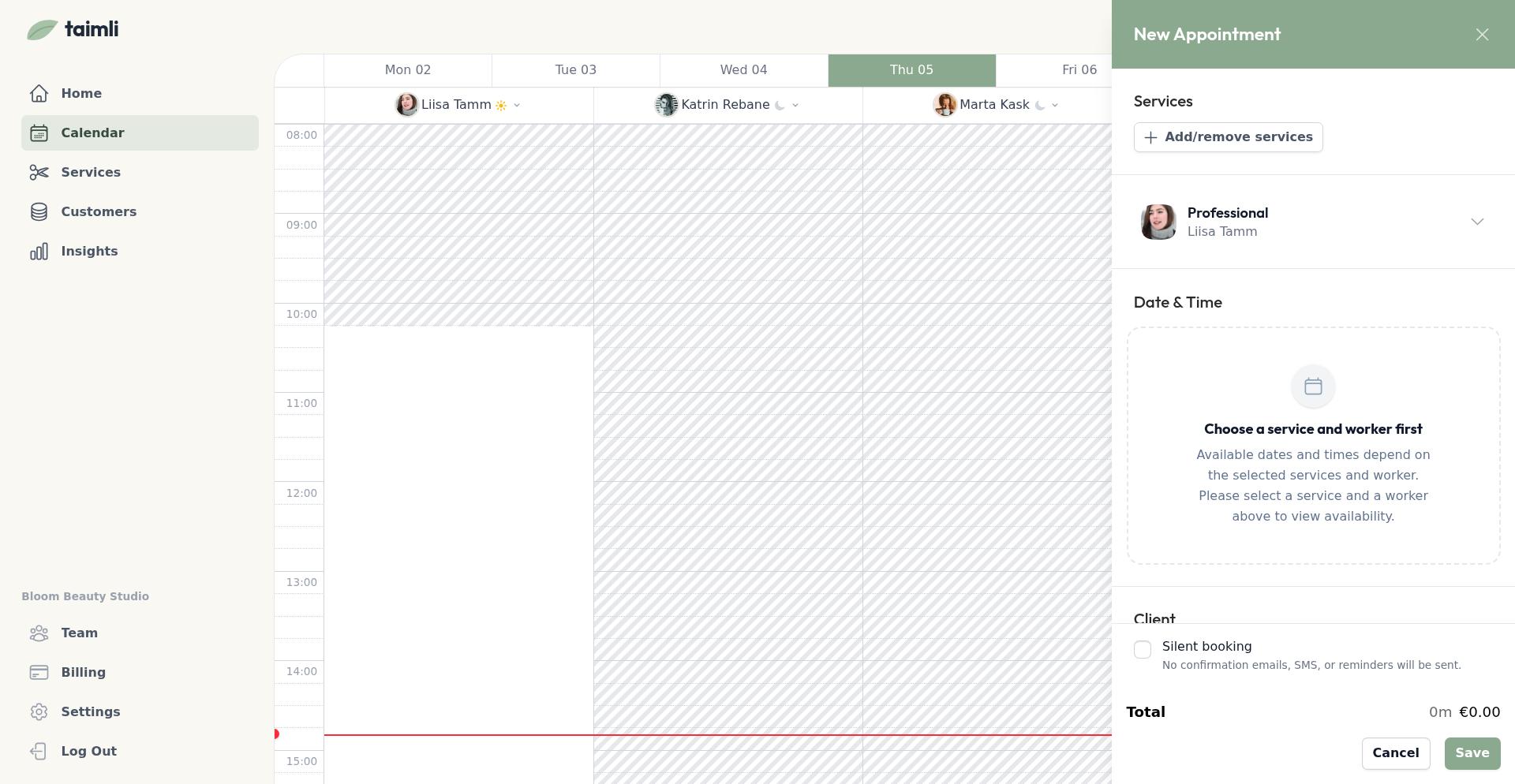
4. Save
The appointment appears on your calendar as a colored block, different from white availability blocks.
If you select a worker who can't perform one or more of the selected services, you'll see an error: "The selected worker is not qualified to perform one or more of the selected services." To fix this, update worker capabilities in the Services view (see Managing Staff Capabilities).
Move an Appointment
To reschedule an appointment, simply drag it to a new time or day.
Click and hold the appointment block
Drag it to the new time slot
Release to drop it
The appointment snaps to 15-minute increments. If you drop it on a time with a conflict, you see "Cannot move: overlaps with another event" and it reverts to the original position.
Moving an appointment only updates your calendar. A toast at the bottom-right offers Undo and Notify customer; the customer is notified only when you click Notify customer.
Change Appointment Duration
To make an appointment longer or shorter:
Hover over the top or bottom edge of the appointment block
Click and drag the edge up or down
Release when you reach the desired duration
Duration changes also snap to 15-minute increments.
Reassign to Another Staff Member
To move an appointment from one worker to another, switch to Everyone view first (see Viewing Multiple Workers).
Switch to Everyone view using the worker selector in the top-right
Drag the appointment from one worker's column to another's
Drop it at the desired time
After the drop, the toast confirms the move: "Reassigned to Alex" when only the worker changed, or "Reassigned to Alex, moved to Mon 08 Sep, 12:00" when you also moved it to a new time. The toast has Undo and Notify customer actions, and the customer isn't notified until you click Notify customer.
Cancel an Appointment
To cancel an appointment:
Click the appointment to open its details
Select the cancel or delete option
Confirm the cancellation
Cancelled appointments free up the time slot immediately. Clients receive a cancellation notification.
Mark an Appointment as a No-Show
When a confirmed client does not arrive, mark the appointment as a no-show instead of canceling it. The booking stays in its Calendar time slot for accurate records, and the customer receives no notification.
Click the appointment to open its details.
In the Manage menu, select Mark as no-show. The option appears only for confirmed bookings, after the appointment start time has passed.
Confirm the Mark as no-show dialog.
The appointment keeps its Calendar time slot with a NO-SHOW badge, and the booking's activity history records Marked as no-show. Customers see the booking as Missed in their booking history and are not notified.
Restore a No-Show Booking
If a booking was marked as a no-show by mistake, you can return it to confirmed at any time.
Click the appointment to open its details.
Select Revert to confirmed.
The booking returns to Confirmed status and the NO-SHOW badge disappears from the Calendar. The activity history records No-show reverted to confirmed, and the customer is not notified.
Edit Appointment Details
To change client information, service, or notes:
Click the appointment block
Edit the fields you need to change. To swap one service for another without removing it and adding a new one, see Replace a Service on a Booking below.
Save your changes
Replace a Service on a Booking
Swap one service on an existing booking for another service or a service variant without removing the original and adding a new one. The replacement takes the original service's place in the booking's service list, and nothing is saved until you confirm.
Click the appointment to open its details.
Click the service line to open its Edit service panel.
Click the service name at the top of the panel to open the Change service picker.
Choose another service or variant. The picker lists only services and variants the assigned worker can perform, grouped by category, each with its duration and price (see Managing Staff Capabilities).
Review the updated Price and enter a Discount percentage if needed. The replacement starts with no discount, even if the original service had one, and the panel shows the price after discount once you enter one.
Click Save.
Bookings with recorded payments or a sent invoice can no longer have their services changed. If a payment has been recorded, saving shows "Services cannot be changed after payments have been recorded." and the original services stay in place. After an invoice has been sent, the service name is no longer clickable. The same restrictions apply when you add or remove services through the Edit Services dialog.
Correct a Bounced Customer Email
When a booking's customer email has bounced, a "Email needs update" alert appears in the appointment details with an Edit email button. Correct the address, save it, and Taimli may then ask whether to resend the booking notifications that missed the customer.
Click the appointment to open its details.
In the "Email needs update" alert, click Edit email.
Replace the address and save.
In the "Resend notifications?" prompt, choose Not now to send nothing, or Choose notifications to open the Resend notifications panel.
The prompt appears only when the previous address bounced, the saved email is genuinely different, and your account has permission to resend booking notifications. See Correcting a bounced customer email for which confirmation, reminder, and cancellation messages you can resend by booking status.
Tips
All changes save automatically when you drag — No need to click save after moving or resizing
Use drag-drop on mobile — Long-press an appointment to start dragging on touch devices
Auto-scroll while dragging — Drag to the edge of the calendar to scroll up or down automatically
Overlaps revert automatically — The system prevents double-bookings by reverting invalid moves
Related Notification Types
Beyond the automatic confirmations, reminders, and cancellation notices, Taimli can also send rebooking notifications to customers who haven't visited in a while. These are separate from move and cancel notifications and encourage past clients to book again.