
Viewing Multiple Workers
If you have multiple staff members, you can view their schedules individually or see everyone side-by-side. This makes it easy to manage team availability and reassign appointments.
Switch Between Views
Use the worker selector in the top-right corner to change what you see.
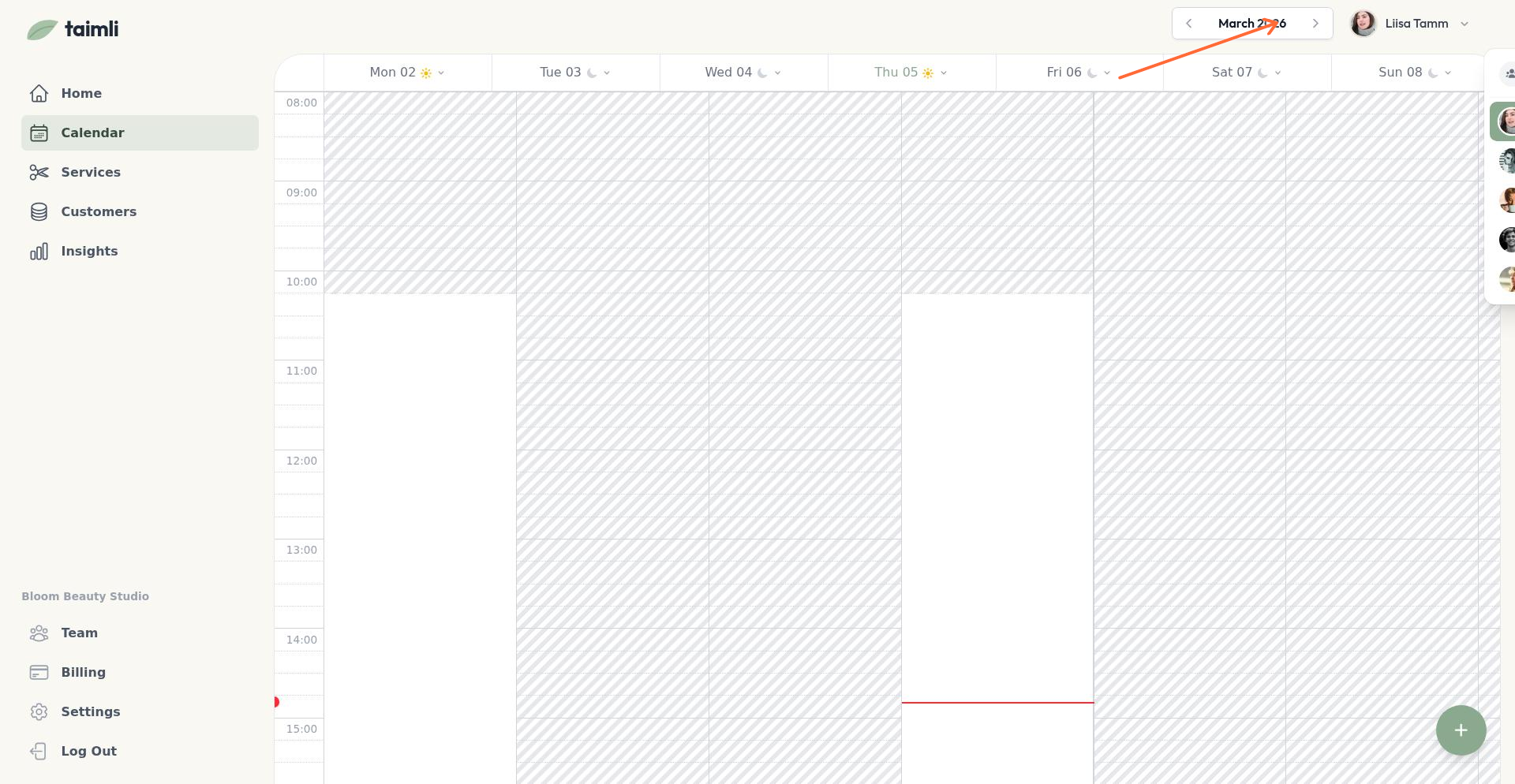
Single worker view shows one person's schedule at a time. Select their name from the dropdown to see only their calendar.
Everyone view shows all workers side-by-side in columns. Select "Everyone" from the dropdown to see the full team.
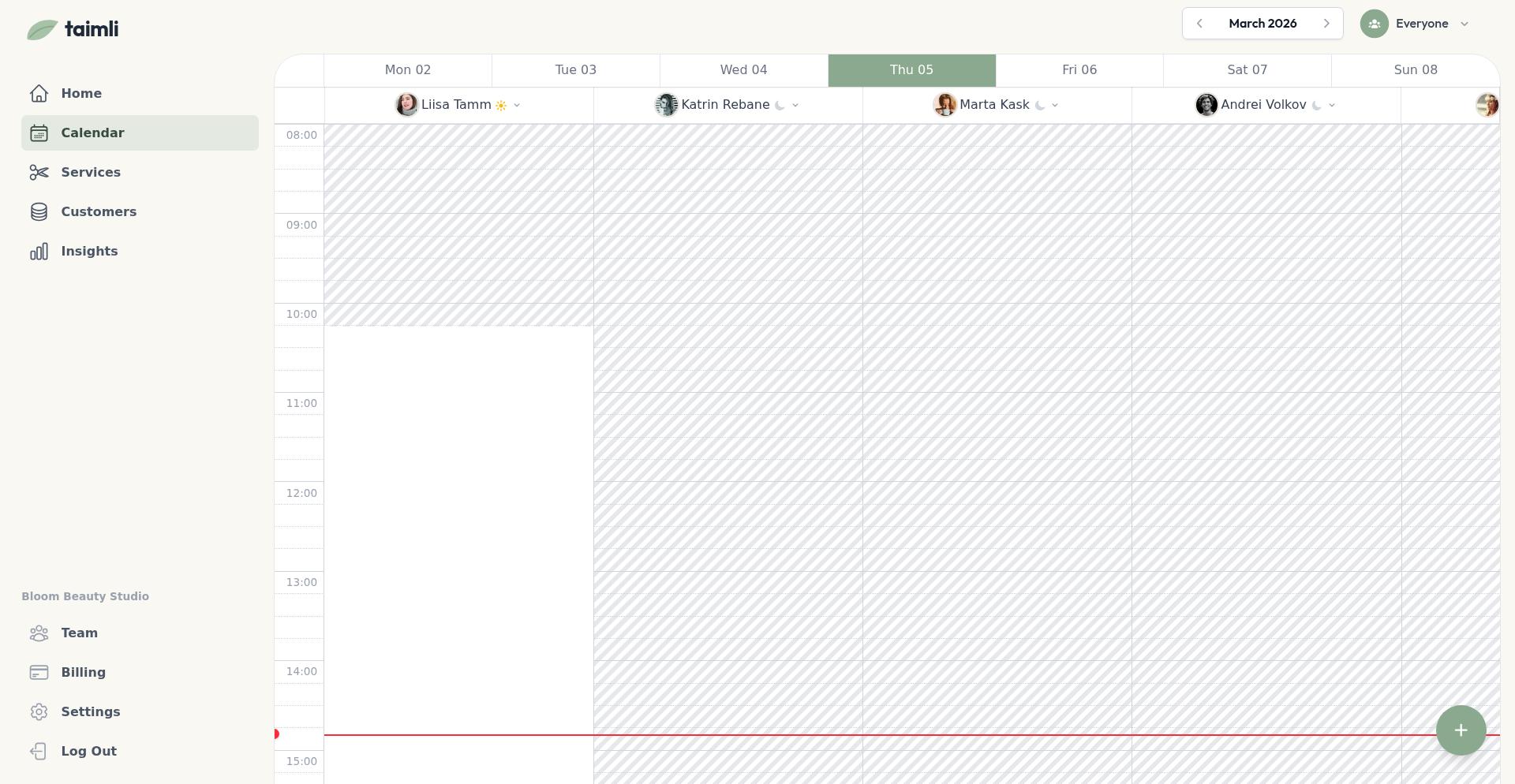
What You Can Do in Everyone View
Everyone view makes it easy to:
See who's available — Compare schedules at a glance to find open slots
Reassign appointments — Drag an appointment from one worker's column to another's
Balance workload — Spot when one person is overbooked and redistribute
Manage availability — Set working hours for each team member
Reassign Appointments Between Workers
In Everyone view, you can move appointments from one staff member to another. Dragging only moves the appointment on your calendar: the customer is not notified until you choose to notify them.
Switch to Everyone view
Click and drag an appointment from one worker's column
Drop it in another worker's column at the desired time
The appointment moves and a toast appears in the bottom-right corner. It says Reassigned to Alex when only the worker changed, or Reassigned to Alex, moved to Mon 08 Sep, 12:00 when you also dropped the appointment at a new time. The toast includes two actions:
Undo puts the appointment back with its previous worker and start time. You'll see "Reassignment undone" when it succeeds.
Notify customer sends the customer an email or SMS about the change. You'll see "Customer notified" after it sends.
Notifying is optional. If you don't click Notify customer, the customer isn't told about the reassignment.
If the new slot overlaps an existing appointment, the move fails with "Cannot move: overlaps with another event" and the appointment returns to its original position. If the move fails for any other reason, you'll see "Failed to move booking".
Set Availability for Each Worker
Each worker can have different availability. In Everyone view:
Click the date header above the worker whose schedule you want to change
Set their working hours using "Work day" or create individual availability slots
Repeat for other workers as needed
You can also switch to single worker view to focus on one person's schedule while setting their availability.
Tips
Use Everyone view for reassignments — You can't drag between workers in single view
Switch views frequently — Use single view for detailed work, Everyone view for overview
Check staff capabilities — Make sure workers can perform services before assigning them appointments