
Email and SMS appointment notifications
Taimli automatically sends confirmation, reminder, cancellation, rescheduling, and pending-request messages to your customers by email and SMS. You control which messages go out, how far in advance reminders are sent, and whether SMS is used, all from Settings > Notification Settings. Post-visit thank-you emails are a separate feature with its own setting under Settings > Thank-you emails; see Thank-you emails. Review email alerts for workers are a staff notification, not a customer one, and are configured separately under Settings > Notifications > Staff Notifications. To also send copies of worker booking emails to your salon address, see Send worker booking emails to your salon address.
Open Notification Settings
Notification Settings lives on the main Settings page, under the Notifications group. The controls for appointment notifications are separate from the Booking Settings section on the same page.
Select Settings from the admin navigation.
Find the Notifications group and open Notification Settings.
Change any setting, then select Save Settings. Unsaved changes show a You have unsaved changes notice until you save.
In Notification Settings, email is always enabled for each notification type and cannot be switched off there; each type has its own SMS checkbox that you can switch on or off independently. The exception is a booking created from a waitlist request: its booking panel has Email and SMS switches under Booking confirmation, both on by default, and you can turn either off for that individual booking.
Notification types
The settings matrix lists six customer-facing appointment events. Email is always enabled for each; SMS is toggled separately and currently defaults to on for all six.
Setting | When it's sent | Timing |
|---|---|---|
Booking confirmed | When a booking is confirmed | Immediate |
Pending request | When a booking awaits your approval | Immediate |
Reminder | Before the appointment | Configurable |
Rescheduled | When a booking time changes | Immediate |
Canceled | When you cancel a booking | Immediate |
Declined | When you decline a pending booking | Immediate |
The message previews use slightly different labels for the same events: Booking reminder, Booking rescheduled, Booking canceled by salon, Booking request received, and Booking request declined.
Reminders for a pending booking are not sent until the booking is approved. Silent cancellations and silent reschedules suppress the customer confirmation, SMS, and reminder messages.
Customer confirmation and reminder content that displays an appointment duration omits it when any booked service has Hide duration from customers enabled. Not every email template normally displays a duration.
Set reminder timing
Choose how far before the appointment the reminder goes out. The current default is 2 hours before.
30 minutes before
1 hour before
2 hours before
4 hours before
12 hours before
24 hours before
If you reschedule an appointment, the reminder is evaluated again against the new time. No reminder is sent after the appointment has started.
SMS costs
SMS is an optional add-on billed at €0.08 per SMS segment. A long message can span multiple segments, so a message may cost more than one SMS. The preview shows the segment count, character usage, and estimated cost before you send.
Preview notifications
Preview a message to see exactly what customers receive, including the subject, sender, and estimated SMS cost.
In Notification Settings, select Preview notifications.
Choose a message from the Customer emails or Customer text messages catalog.
The preview is read-only: it shows the message but does not let you edit the template or its content.
Check delivery status
See whether a message was actually delivered in the booking's Activity log, which records sent, failed, bounced, and skipped results for email and SMS. Open the appointment in the admin Calendar, choose Manage > Activity log. For the full walkthrough, see View a booking's activity history.
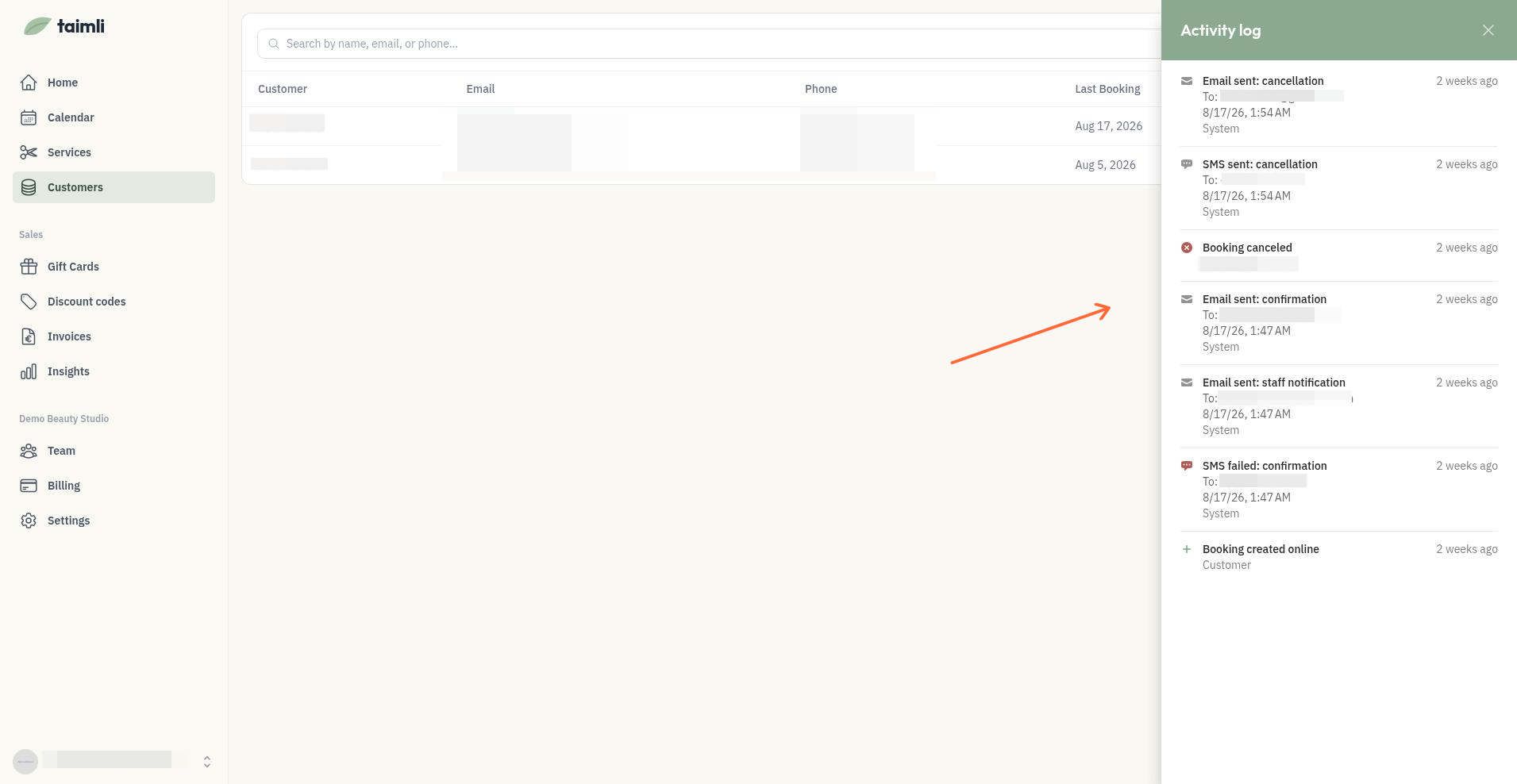
The separate Upcoming reminders section is a forecast of what Taimli plans to send, not proof of delivery. Use the Activity log to confirm a message went out.
A channel is skipped, not failed, when Taimli deliberately does not send it: the customer has no usable email address or phone number, their email has bounced, or SMS is switched off for that message type. Email and SMS are decided separately, so a skipped email does not stop the SMS from going out.
When a notification fails
The Activity log is the record of what happened to each message. Match the entry you see to the explanation below.
Activity log entry | What it means |
|---|---|
Email sent | The email provider accepted the message for delivery. |
Email failed | A temporary provider or connection problem stopped the send. Taimli retries automatically. |
Email bounced | The address was rejected or a permanent bounce was reported. Taimli marks the email as bounced and sends the message by SMS instead. |
SMS sent | The SMS provider accepted the message. |
SMS failed | The provider could not deliver the message. Temporary errors are retried; an invalid or unsubscribed phone number is not. |
Notification skipped | Taimli did not send on purpose, and the entry gives the reason: missing email address, bounced email, missing phone number, or SMS disabled. |
Email bounces fall back to SMS
When a customer's email bounces or the provider rejects the address, Taimli marks that email as bounced and sends the same customer message by SMS instead, if the customer has a usable phone number and SMS is configured for your salon. There is no fallback in the other direction: a failed SMS is not resent by email.
Failed deliveries are retried automatically
Temporary problems such as connection errors, timeouts, and provider server errors are retried automatically. The Activity log can show several failed entries for the same message before a sent entry appears, so a failed entry is not always final.
Permanent recipient problems are not retried: an invalid or inactive email address, and an invalid or unsubscribed phone number. These need corrected contact details before the message can reach the customer.
Fix the contact details, then resend
A bounced or skipped entry usually means the customer's contact details are wrong or missing. Update the email address or phone number in the customer record, then resend the missed messages from the booking details. For bounced email addresses, Correcting a bounced customer email walks through the alert, the correction, and the resend prompt.
Resend a notification manually
Send a message again from a booking's details when a customer missed it, for example after you correct a bounced email address.
Open the appointment in the admin Calendar and open its booking details.
Select Resend notifications.
Choose the message to resend: confirmation, reminder, or cancellation, by email or SMS.
Select Send.
The confirmation and reminder options are available only for confirmed bookings, and the cancellation option only for canceled bookings. A resend still needs a usable email or phone number for the customer; if sending fails, you'll see an error and can try again.