
Blocking a customer from online booking
You can block a customer from making new bookings through your public booking page while still allowing staff to book them manually from the calendar. This is useful when you need to stop no-shows, handle payment issues, or manage difficult clients.
What happens when you block a customer
Blocking does not delete the customer or their history. It prevents the customer from creating new bookings through your public booking page. Staff can still add appointments for blocked customers directly in the calendar.
When a blocked customer tries to book online, they see a generic error:
Online booking could not be completed. Please contact the salon.
The block matches the customer by their email or phone number recorded at the time of blocking.
Block a customer
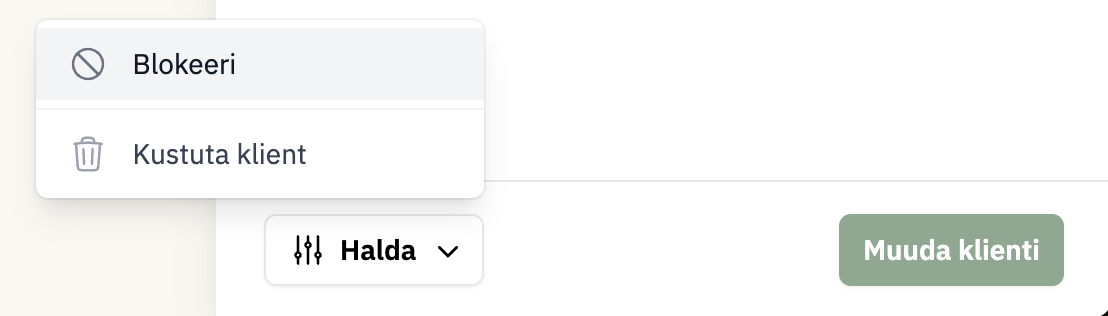
Go to Customers in the admin.
Click a customer row to open the Customer Details panel.
Click Manage at the top of the panel.
Select Block.
Optionally enter an Internal reason for the block. It is visible only to staff, and you can leave it empty.
Click Block online booking.
The customer details panel now shows an Online booking blocked alert, with the reason you entered if you added one.
If the block fails with the message "You are not authorized to block online booking.", your account does not have permission to block customers. An account with that permission needs to make the change.
The internal reason is for your records only. Customers do not see it when they attempt to book.
Unblock a customer
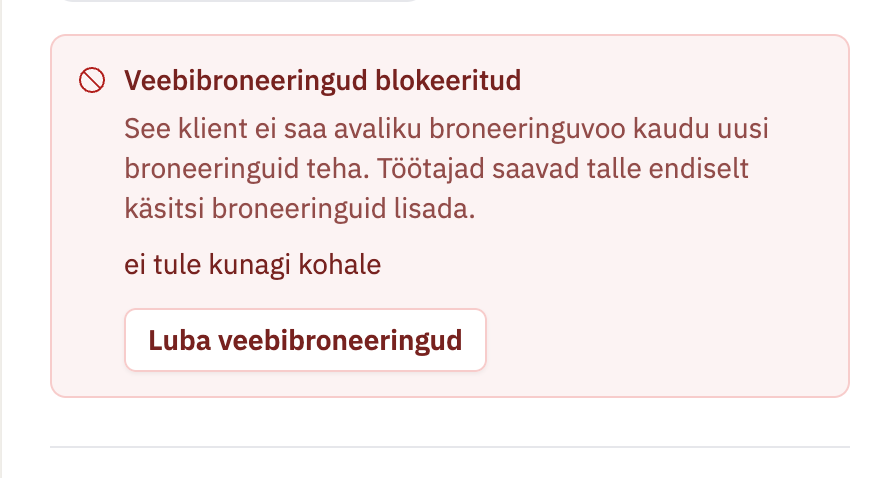
Go to Customers and open the Blocked customer's details panel.
Locate the Online booking blocked alert.
Click Allow online booking.
The block is removed immediately and the customer can book online again.
How blocking works
Blocking captures the customer's email and phone at that moment. If their contact details change, bookings will still be blocked based on the snapshotted values.
Staff can always manually book a blocked customer from the calendar.
Blocking only affects new public booking attempts. Existing appointments remain unchanged.
When to use blocking
Repeated no-shows or late cancellations
Payment disputes or unpaid balances
Behavior issues that require staff involvement in future appointments
Related
For private staff notes about customers, see Adding Notes to Customer Profiles. For collecting extra details during booking, see Custom booking fields.