
Translate your salon catalog into other languages
Catalog translations lets you add languages so customers can book in their preferred language. You translate your salon description, custom booking terms, categories, services, and variants into English, Estonian, Finnish, Polish, Russian, or Swedish, and customers see the translated content on your public salon and booking pages.
You need the settings permission to view and update translations.
Enable a language
Your salon's base language is set in Settings and cannot be added as a translation language. To add a language that customers can use:
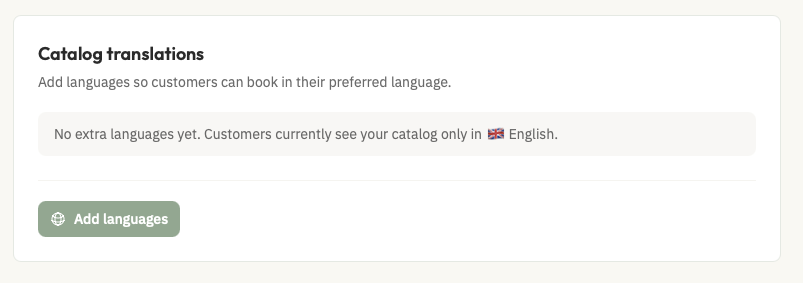
Open Settings from the sidebar.
Under Regional Settings, open Catalog translations.
Click Add language.
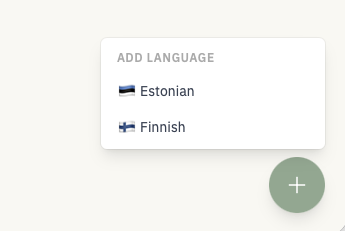
Choose a language from the menu. The menu lists only supported languages that are not your base language and not already enabled.
Select the language. It is added as a tab and the page confirms Language enabled.
Polish is one of the supported customer languages and appears as Polski in the menu. Enabling a language does not translate anything on its own. You enter the translations yourself in the editor.
Enter translations
The editor shows your base-language content on the left and an input for the selected language on the right. You can translate these fields: salon description, custom booking terms, category names, service names and descriptions, and variant names and descriptions.
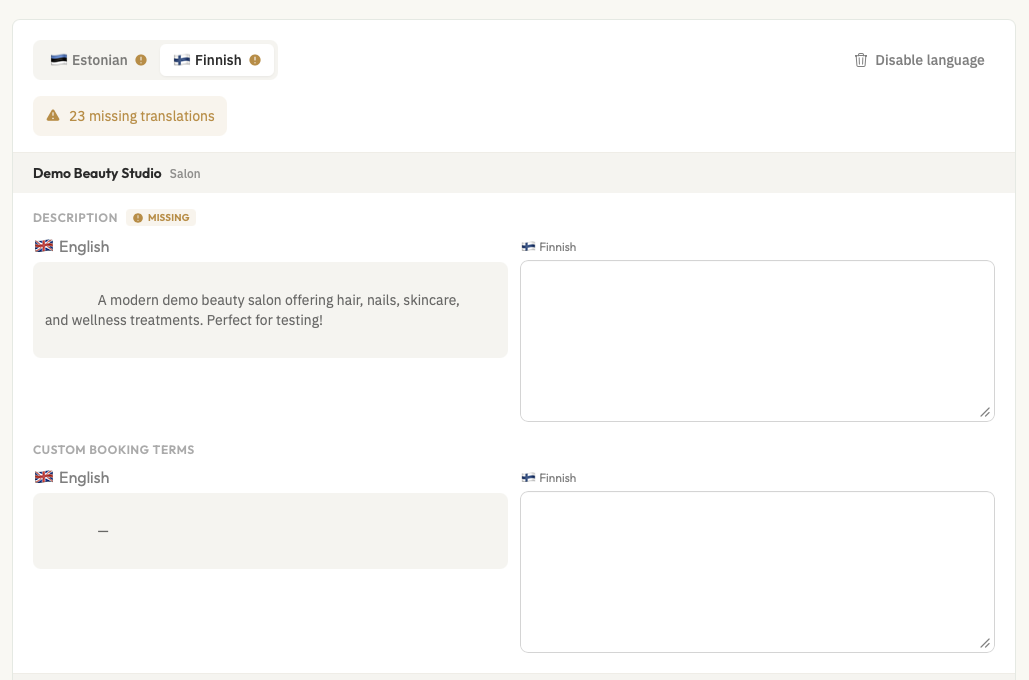
Select the language tab you want to edit.
Enter a translation in each input. Description and custom booking terms use larger text areas.
Click Save translations.
When you make changes, a sticky bar shows You have unsaved changes with the Save translations button. While saving, the button reads Saving....
How saving works
Saving persists your translations immediately. There is no separate publish step; once saved, the translations are used on customer-facing salon and booking pages.
Missing and Outdated statuses
A field shows Missing when your base-language content has a value but the translation is blank. It shows Outdated when you changed the base-language content after saving a translation, so the stored translation no longer matches. A language tab shows a warning icon when any field is missing or outdated, and a banner summarizes the counts.
Disable a language
To remove a language, click Disable language and confirm Disable this language and delete its translations?. This removes the language and permanently deletes its saved translations.
How customers see translations
Customers see your catalog in their preferred language when it is one of your enabled languages. If a translated value is missing or blank, customers see your base-language content instead. If a customer's preferred language is not enabled, they see your base language.
When a customer selects a language on your public booking page, the whole customer experience uses that language: the booking pages, the waitlist, customer preferences, appointment emails, and SMS messages.
The salon admin area and marketing pages are not translated by this setting. The admin area stays in the language you use for your account, and marketing pages keep their existing language.
To preview, open your public booking page from the Booking Link section in Settings and choose the language from the selector on the page.
To set up the content you translate, see Services Overview and Add custom booking terms.