
Set your weekly hours
Save a repeating weekly schedule for a worker with Weekly hours. You choose which weekdays are open and their start and end times, and the calendar fills empty future days with that availability through your online booking window. Set them from the calendar, or from the team member panel while adding or editing the worker.
Who can set weekly hours
Owners and admins can set weekly hours for any worker. A worker without admin rights can set weekly hours only for their own schedule. The option appears only when you are viewing a single worker, not in the Everyone view.
Open the Weekly hours dialog
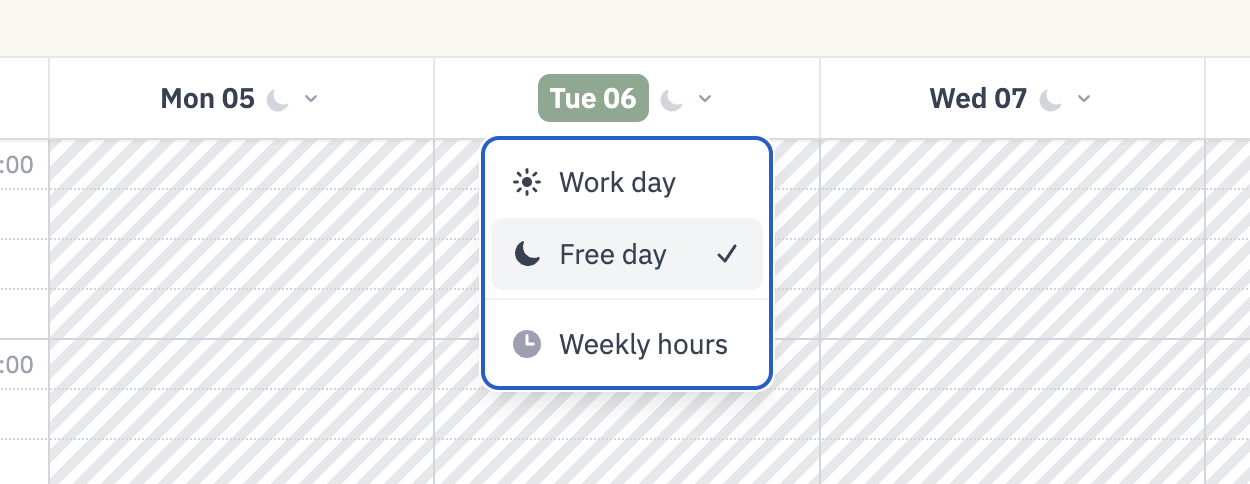
Open the calendar.
Select the worker in the worker dropdown.
Click a date header in the week view, such as "Thu 05". On mobile, open the day dropdown instead.
Choose Weekly hours from the dropdown, below Work day and Free day.
Fill in the week
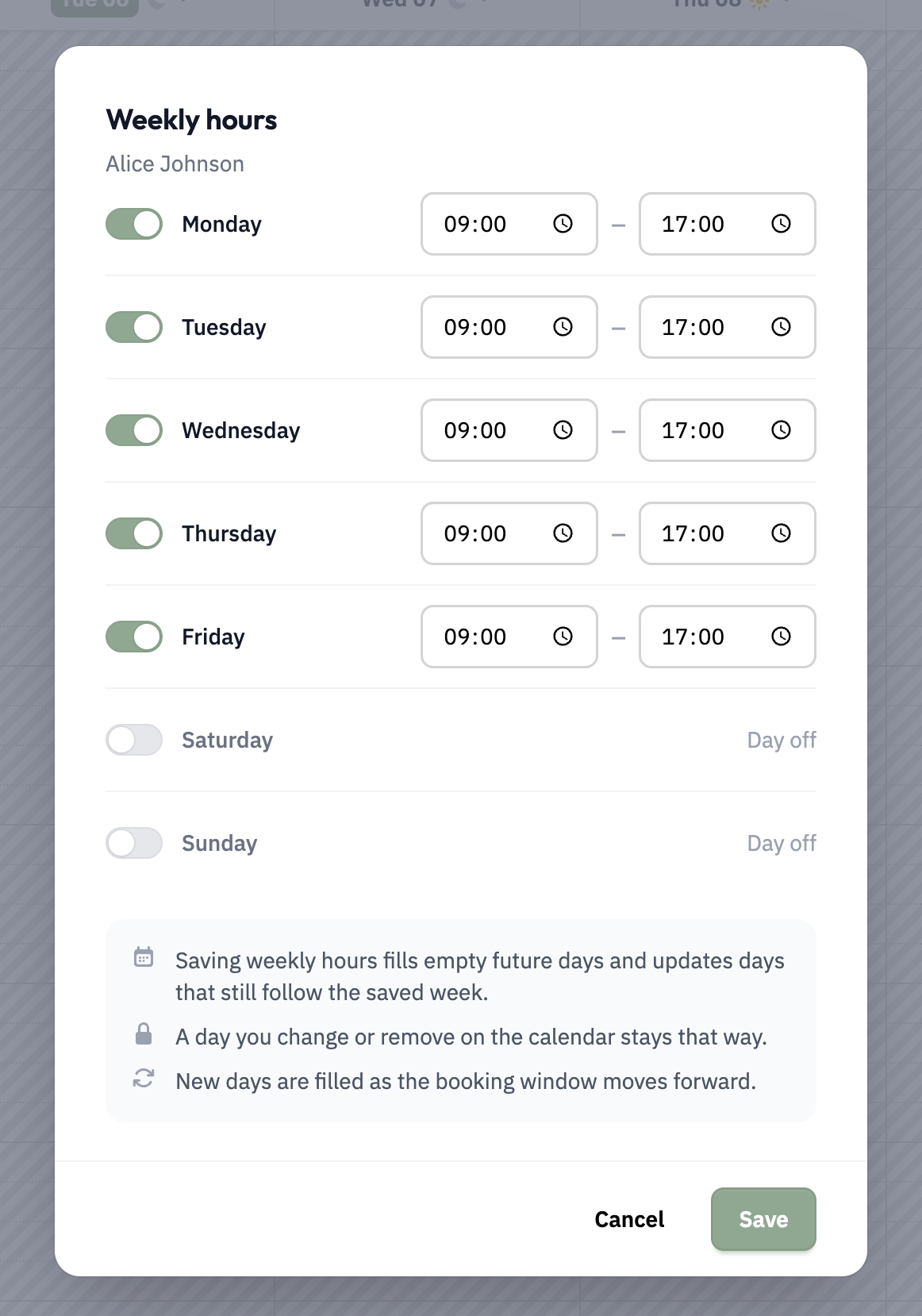
The dialog lists Monday through Sunday. Each day has a checkbox to turn it on, plus Start and End time pickers that move in 15-minute steps.
Turn on each day the worker works.
Set the Start and End times for every open day.
Click Save.
Days left turned off show Day off. Times you entered stay in place if you toggle a day off and back on.
If Save is rejected, the dialog shows what to fix:
Turn on at least one day. No weekday is switched on.
Enter a start and end time. An open day is missing one of its times.
Time must be in 15-minute increments. A start or end time falls between the 15-minute steps.
End time must be after start time.
End time cannot be midnight. A day cannot run past midnight into the next day.
Set weekly hours from the team member panel
Owners and admins can set a worker's weekly hours on the Team page, in the same panel as the worker's profile details. The fields use the same day checkboxes and 15-minute Start and End times as the calendar dialog, and the hours save together with the worker's details.
Open Team.
Add a team member, or edit an existing one.
In the Work hours section below their profile details, turn on each day the worker works and set the Start and End times. Days left turned off show Day off.
Save the team member details. The work hours save with them.
When you edit a worker who already has a saved schedule, at least one day must stay on. Turning off every day shows Turn on at least one day. and the save is rejected. To remove the schedule entirely, use Delete weekly hours in the calendar dialog instead.
Saving updates future availability the same way the calendar dialog does. If days with bookings had to keep their previous hours, the panel shows a notice telling you how many days were kept, such as 1 day was left because it has a booking. Booked days and days you changed on the calendar are never rewritten.
What happens when you save
Saving stores the weekly pattern and applies it to future dates, from tomorrow through your Online booking window. Empty future days are filled with the saved hours, and days that still follow the saved week are updated to match it. If no booking window is set, weekly hours fill 84 days ahead.
Days with bookings are never rewritten. If any were skipped, a notice tells you how many days were left because they have bookings.
A day you changed or removed on the calendar stays that way. Weekly hours never overwrite your manual edits.
New days are filled as the booking window moves forward, so you set the pattern once.
Start and end times are interpreted in your salon's timezone.
Change or delete weekly hours
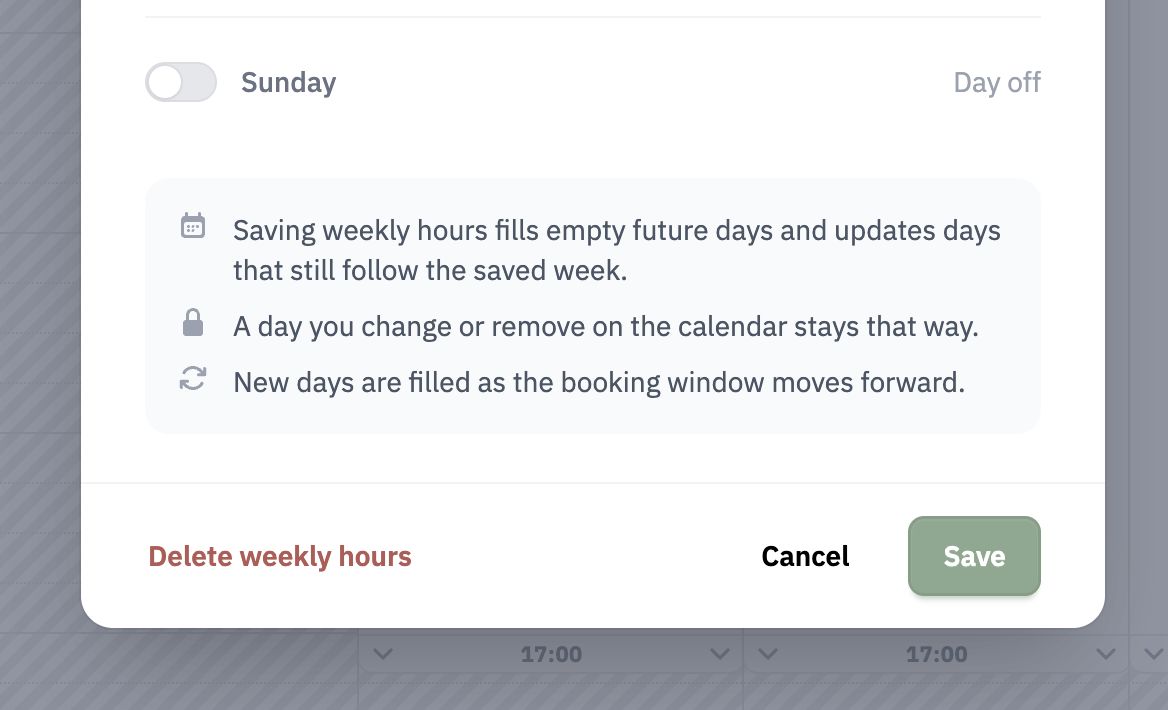
Reopen the dialog from any date header to load the saved pattern. Edit the days and click Save: future days that still follow the pattern are updated, while booked days and days you changed manually stay.
To stop the schedule from repeating, click Delete weekly hours in the dialog. The button appears only after a pattern has been saved. Confirming clears the future days that still follow the pattern; days with bookings and days you changed stay.
How weekly hours fit with the other availability tools
Weekly hours sit alongside the day-by-day tools: set one day with Work day, create individual availability slots, or copy the previous week (see Setting Up Your Availability). Editing a day with those tools keeps your version, because weekly hours only fill or update days that still follow the saved week.
The Calendar hours setting is separate: it changes which hours are visible on your admin calendar and never opens slots for clients (see Choose the hours shown on your calendar).