
Add a booking button to your salon website
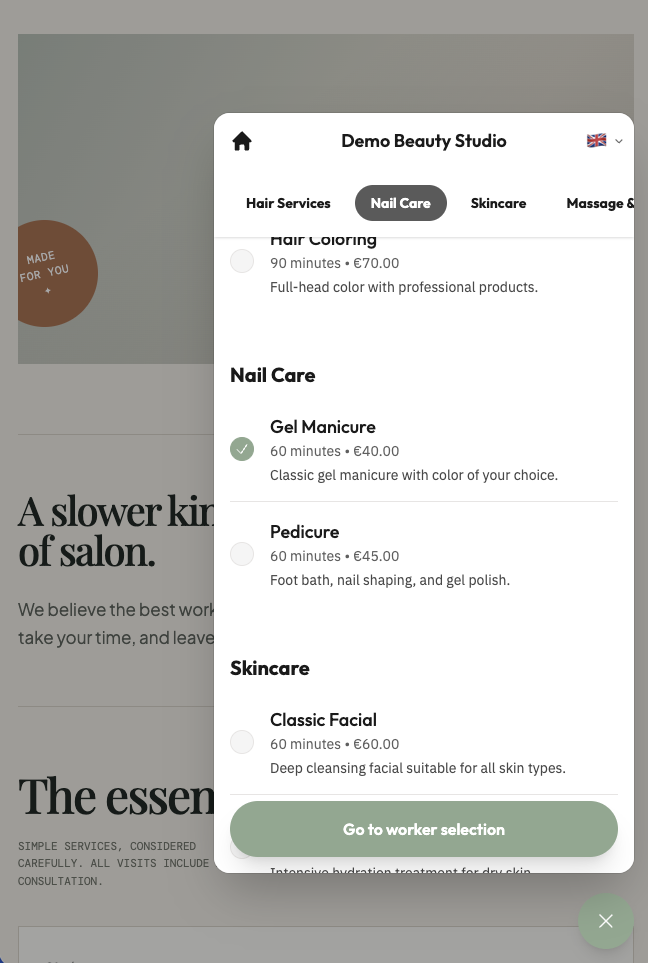
Add a floating booking button to your own website so visitors can book an appointment without leaving it. You enable the widget in Settings, copy the generated code, and paste it into your website's HTML. The button opens your existing public booking flow in a secure panel, so you do not need to rebuild the booking form.
Before you start, make sure online booking is set up for your salon. Follow Quickstart to open your availability and confirm your services are bookable. You also need access to your salon Settings.
Enable website booking
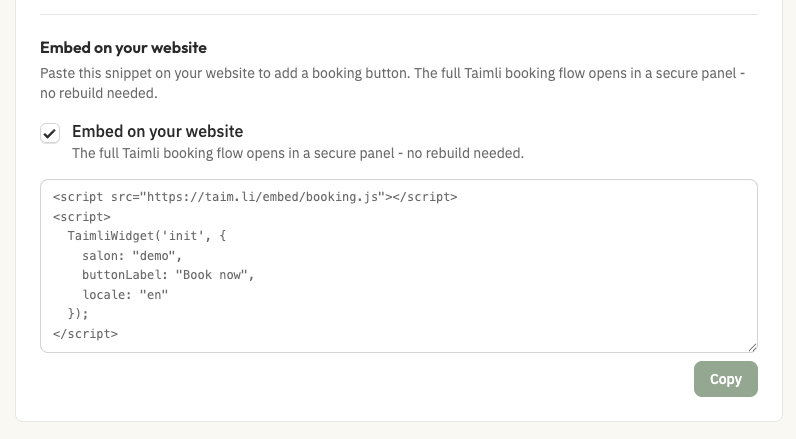
Website booking is off by default, and the widget code stays locked until you turn it on.
Go to Settings.
In the Booking Link section, tick the Embed on your website checkbox.
Click Save Settings.
Until the checkbox is enabled, the snippet and its Copy button are disabled.
Copy the booking widget code
The snippet is generated for your salon, so it already contains your button label and language.
In Settings under Booking Link, click Copy next to the snippet.
Confirm the button shows Copied!.
The snippet loads the widget and initializes it with your salon, button label, and language. The default button label is Book now in English, Broneeri aeg in Estonian, and Varaa aika in Finnish, matching your salon's language.
Add the code to your website
Paste the complete snippet into the HTML of your website. The button is a floating widget fixed to the bottom-right corner of the screen, about 20px from the right and bottom edges, and it stays there while the page scrolls. You cannot place it inline in a page section, and where you paste the snippet does not change where the button appears.
Because the position is fixed, you can paste the snippet anywhere in your HTML. A spot just before the closing </body> tag is a common choice.
In a website builder, paste the snippet where your builder accepts custom code that applies to the whole site, such as a custom code, embed, or header and footer scripts field. Do not paste the snippet into a text block on a single page section.
Clicking the button opens the full Taimli booking flow in a secure panel with a close control, so visitors book without leaving your website. The panel opens above the button in the bottom-right corner, up to 420px wide and 760px tall.
Test the booking button
Before you go live, open your published website and complete a test booking through the button.
Open your published website.
Click the booking button.
Complete a test booking in the panel.
If you disable Embed on your website after adding the code, visitors who open the button see Booking embed unavailable with a message that website embedding is not enabled. Your regular booking link still works separately.